Interactive Visual Chatbot Responses: Forms, Cards, Buttons, and Tables

Yongrui Su
on December 5, 2025Interactive visual chatbot responses let your AI show forms, product cards, action buttons, carousels, confirmation cards, summaries, and tables inside the conversation instead of replying with text only.
Your chatbot doesn't have to be text-only anymore. With interactive visual responses, your AI can now show forms, product cards, buttons, carousels, and other visual components right in the conversation.
This makes your chatbot more engaging, helps collect data better, and guides users through processes more naturally.
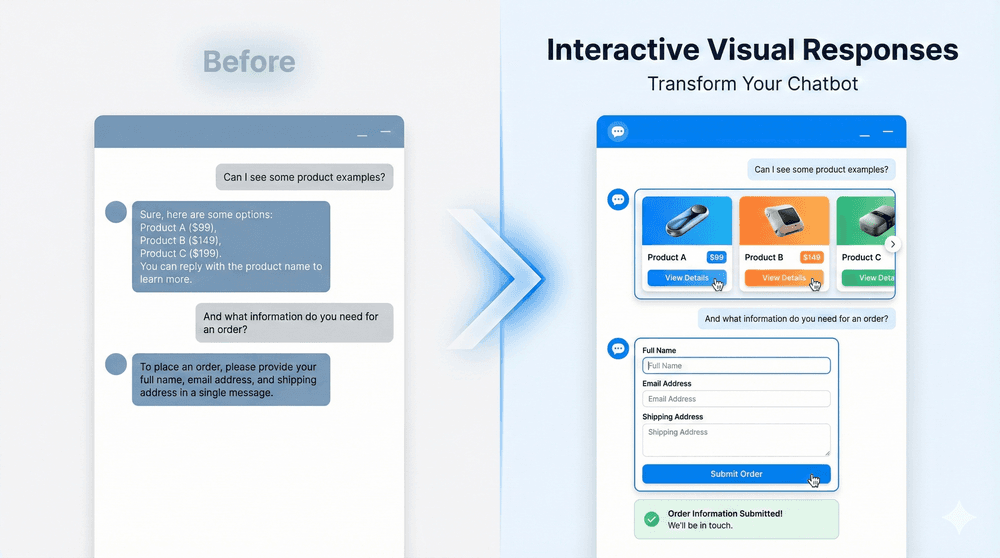
What Can You Create?
Your chatbot can now generate:
Forms and Surveys - Collect information from users with input fields, checkboxes, dropdowns, and submit buttons
Product Carousels - Display products in a scrollable gallery where users can browse and click to learn more
Confirmation Cards - Show summaries of orders, appointments, or actions with key information highlighted
Information Tables - Display structured data like pricing, features, or schedules in an organized way
Action Buttons - Create clickable buttons that open links, continue conversations, or trigger workflows
Step-by-Step Flows - Guide users through processes by showing relevant visuals at each step
How to Get Started
You have two ways to use interactive visuals:
Option 1: Enable for All Conversations
Make visual responses your default for all chatbot interactions:
- Go to Chatbot Settings
- Find Model Configuration or AI Settings
- Look for "Response Format" option
- Switch from "Text-based" to "Interactive"
- Save your changes
Now your chatbot will show visual components whenever it makes sense.
Option 2: Use in Specific Workflows
Control when to show visuals by adding them to specific workflow steps:
- Open your Workflow Builder
- Add a "Dynamic UI Composer" block where you want visuals
- Write instructions describing what you want to display (e.g., "Show a product recommendation card")
- Use the AI Condition or Static Condition to control when to use this block to display UI elements
- Connect it to the next step in your workflow
This gives you more control over when visuals appear.
Real-World Use Cases
Website Summary & Data Extraction
Your chatbot can summarize web pages, articles, or any content and display the key information in organized cards. Users ask "Summarize this page" and your chatbot extracts and displays key metrics, prices, stats, and important details in a clean, scannable format. Perfect for financial information, product reviews, news articles, or any structured data on the web.

Online Search & Real-Time Data
Your chatbot can search the web for current information and display live data in beautifully organized cards. Users ask "What's the finance status of NVIDIA?" and your chatbot instantly retrieves real-time financial metrics, trends, and analysis—displaying revenue, profit margins, market cap, charts, and quarterly highlights all in one interactive dashboard. Perfect for market research, competitive analysis, news lookup, or any real-time information needs.
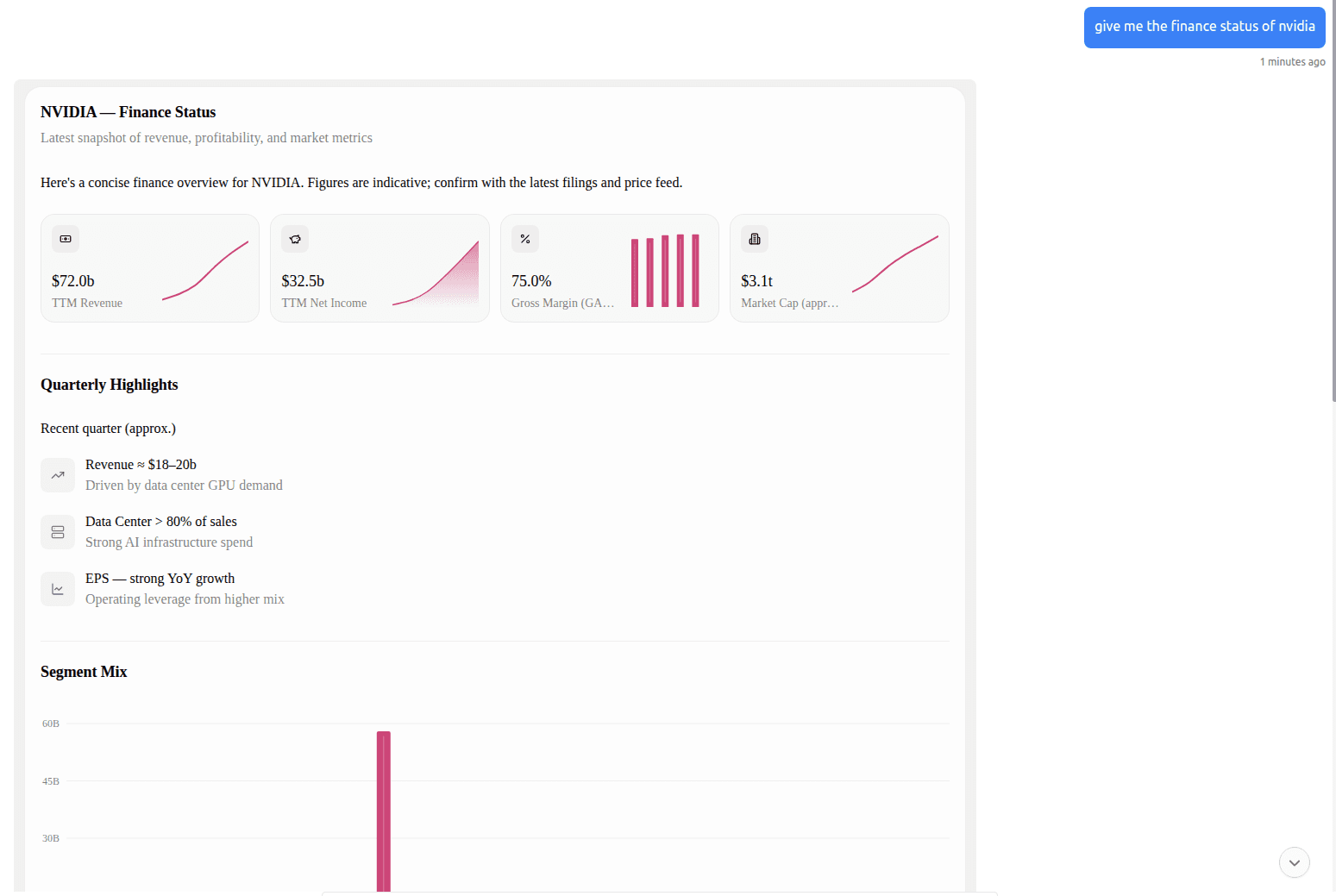
More Use Cases You Can Build
E-Commerce Store
Show product recommendations as interactive cards. When a customer clicks a product, they see more details or can add it to their cart. Your chatbot guides the entire shopping experience.
Lead Qualification
Collect customer information through a form. Based on their answers, show different next steps—demos, pricing, or trial signup—all visually organized.
Appointment Booking
Display a calendar and time picker. Customer selects a date and time, sees a confirmation card, and gets a calendar invite automatically.
Customer Support
Show a checklist of troubleshooting steps. Customers check items as they complete them. Based on their progress, your chatbot offers different solutions.
Feedback and Surveys
After a conversation, show a survey form. Customers rate their experience and provide feedback. Results help you improve.
Service Selection
Display service options as cards with prices and features. Customers click to select, see a summary, and proceed to purchase or scheduling.
Controlling What Your Chatbot Creates
Want precise control over what visuals your chatbot generates? Here's how:
-
Add Dynamic UI Composer Block - In Workflow Builder, add a "Dynamic UI Composer" block where you want interactive visuals
-
Define UI Structure with UI Formats - Click "UI Formats" to specify the exact data structure and fields for the UI. For example:
- "Form with name, email, and subject fields"
- "Product card with image, title, price, and rating"
- "Appointment card with date, time, and confirmation button"
-
Prepare Your Data - Tell the chatbot where to get the data:
- Use Knowledge Base: Let the chatbot search your knowledge base to gather information
- Use API Block: Call an external system (database, API) to fetch data
- Use Custom Code: Write custom logic to prepare the data
-
Write Instructions - In the block's prompt, tell the AI what to do:
- "Create a product recommendation card"
- "Generate a lead capture form"
- "Build an appointment booking interface"
-
Result - Your chatbot combines everything: the instructions you wrote + the UI format you defined + the data from your chosen source. This creates a perfectly structured interactive UI that users can interact with immediately.
The more specific your UI format and instructions, the more consistent and reliable your generated interfaces will be.
How Users Interact
When users interact with visual components:
Clicking Buttons - Opens links in a new tab or sends a message back to your chatbot
Submitting Forms - Form data is sent as a user message to your chatbot
Selecting Options - Selecting from buttons, dropdowns, or cards sends that choice as a message
Important: The Dynamic UI Composer block displays the visuals, but it doesn't automatically handle these interactions. To process what users do, you need to add more workflow blocks after the UI display:
-
AI Condition Block - Detects what the user did (e.g., "user submitted the form" or "user clicked cancel") and routes to different workflow paths based on their action
-
AI Capture Block - Extracts and saves user information from the conversation into variables (like name, email, selected options, form answers)
-
Custom Code Block - Performs actual actions with the captured data, like sending to an API, saving to a database, or calling your CRM system
Example: User fills out a contact form and submits it → AI Condition detects the submission → AI Capture extracts the name and email → Custom Code sends the data to your email system or CRM → Confirmation message is sent back to the user.
This workflow structure gives you complete control over how user interactions are handled.
Where Interactive Visuals Work
Interactive visual responses are designed for your website widget, where they display beautifully and fully interactive.
Website Widget - Full support for all interactive visual components. Users see and interact with forms, carousels, cards, and buttons directly in your chatbot.
Other Integrations - For messaging apps (WhatsApp, Messenger, Instagram, Telegram, Slack, Discord) and other integrations that don't have web UI support, the chatbot automatically uses text-based responses instead. This keeps conversations working smoothly while the user receives the information in a text format they can still act on.
This means your workflows work everywhere your chatbot appears, with the best experience automatically provided on each platform.
Tips for Best Results
Keep Forms Simple - Ask for the information you really need. Too many fields overwhelm users.
Use Clear Instructions - Tell users what to do: "Select your preferred time slot" instead of just showing options.
Show Context - When showing options or forms, remind users why they're filling it out: "Help us understand your business type"
Make it Visual - Use descriptive text and clear labels. Make buttons obvious with action-focused text like "Continue" or "Book Now"
Test on Mobile - Many users browse on phones, so make sure your designs look good on small screens.
Group Related Information - Put related fields together in forms. Group related products in carousels.
Examples of What's Possible
A customer asks "What should I buy?" Your chatbot shows:
- Product cards with images, names, prices, and ratings
- Customer can click to see details or add to cart
- Shows comparison tables if asked
A customer wants to book an appointment. Your chatbot shows:
- A calendar to pick a date
- Available time slots for that date
- A confirmation card with details
- Sends calendar invite automatically
A customer fills out a support form. Your chatbot shows:
- A form asking about their issue
- Their answers are confirmed visually
- Based on answers, shows relevant solutions
- Offers escalation to support if needed
A customer completes a purchase. Your chatbot shows:
- Order confirmation card with items and total
- Delivery timeline and tracking info
- Next steps or related offers
Questions?
Want to use this feature but not sure where to start?
Check our advanced response formats documentation for detailed guides on creating engaging visual experiences, or reach out to our support team for personalized help.