Browser AI Actions: Let Your Chatbot Act on Your Website

Samuel Su
on October 30, 2026Your chatbot could already look things up for your visitors. Now it can also do things on the page they are looking at: see what is in their cart, add a product, apply a filter, or take them to the right page.
What your visitors can ask
- "Add 2 medium T-shirts to my cart" - the T-shirts go straight into the cart on the page.
- "What's in my cart?" - the chatbot reads the cart the visitor sees.
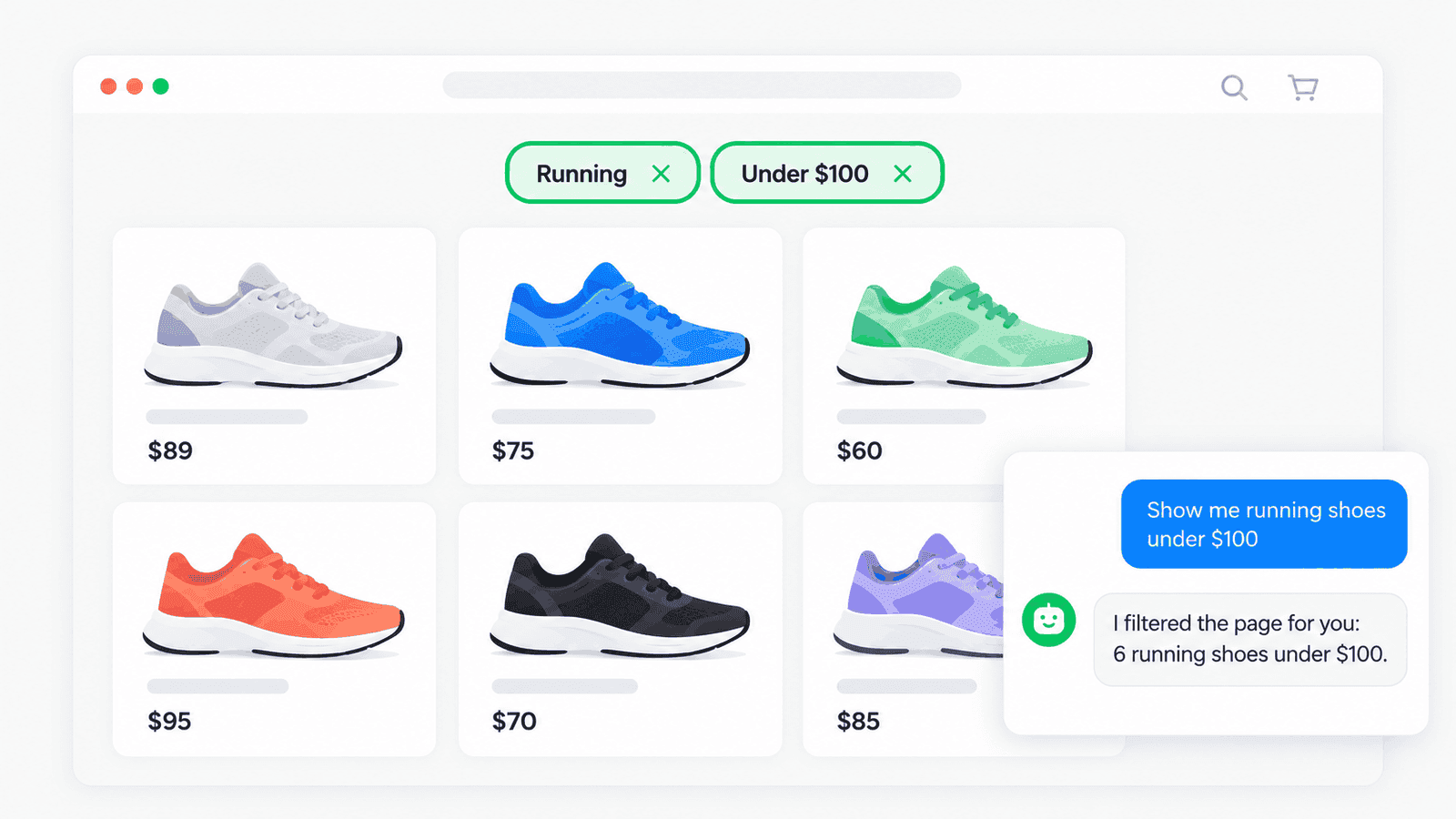
- "Show me running shoes under $100" - the chatbot applies the filters on your product page for them.
- "Take me to my order history" - the chatbot opens the right page.
How it works
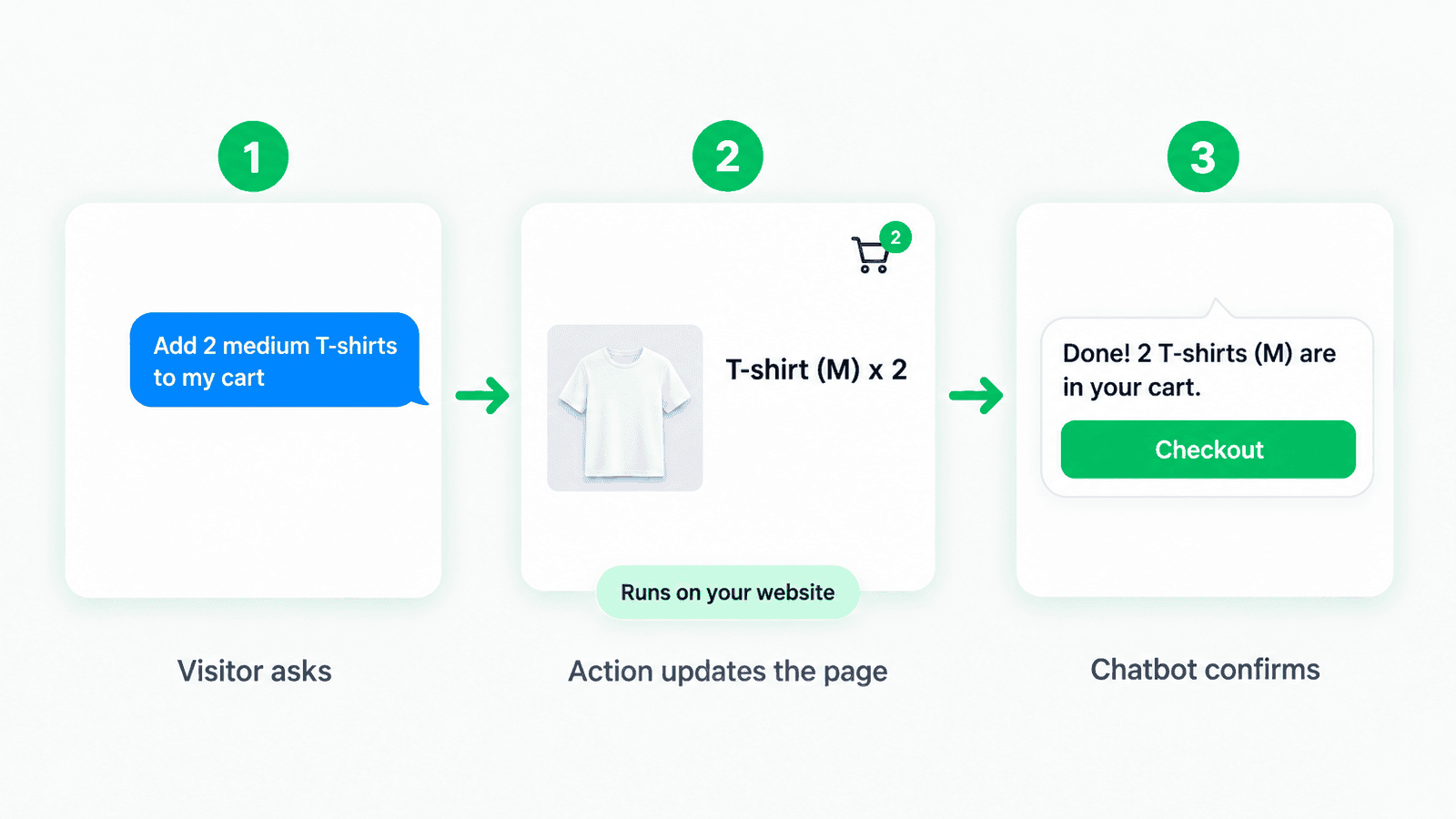
- Your visitor asks in the chat on your website.
- The action runs on your website and does the job on the page: here, adding the T-shirts to the cart.
- Your chatbot confirms with what actually happened, so the visitor sees the change and the answer together.
Another example: on a shoe store, the chatbot narrows the product list for the visitor instead of describing it.
No changes to your website
Each action is a short piece of JavaScript that you add in your dashboard. We load it onto every page where your chatbot appears, so there is nothing to deploy. If your developer already has the code on your site, they can connect it instead: the editor shows them how.
Where it works
- In chat on your website, in standard mode and in AI Agent mode.
- In the AI Conversation and AI Agent steps of your workflows.
Try it on your website: the dashboard Playground doesn't run these actions.
Good to know
- Test before you save. Try the code with sample inputs right in the editor.
- See what your chatbot did. Debug shows every action it ran and what came back.
- Honest answers. If the action can't finish, for example because the visitor closed the page, your chatbot says so instead of guessing.
- Keep secrets out. Anyone visiting your site can see this code, so never put passwords or API keys in it.
Get started
Open Settings → Actions, choose Custom action, and pick Visitor's browser. Describe what the action does, add the code, test it, and save. Then ask your chatbot on your website.