Your Chatbot Can Now Send WhatsApp Forms and Approved Messages

Samuel Su
on November 11, 2026Your chatbot can now send two new things on WhatsApp:
- A form your customer fills in without leaving the chat, such as a table booking or an order. WhatsApp calls these Flows.
- A ready-made message whose wording WhatsApp has checked and approved in advance, with blanks for details like the customer's name or order number. Think of an order confirmation. WhatsApp calls these templates.
You choose which forms and messages your chatbot may send and when. Your chatbot sends them at the right moment in the conversation and adds details such as the available times or the order number. Bookings and orders get finished in the chat, with fewer messages back and forth.
Forms (WhatsApp Flows)
Here is the booking form from our WhatsApp demo. Customers can choose a time and add their guests without leaving the chat.
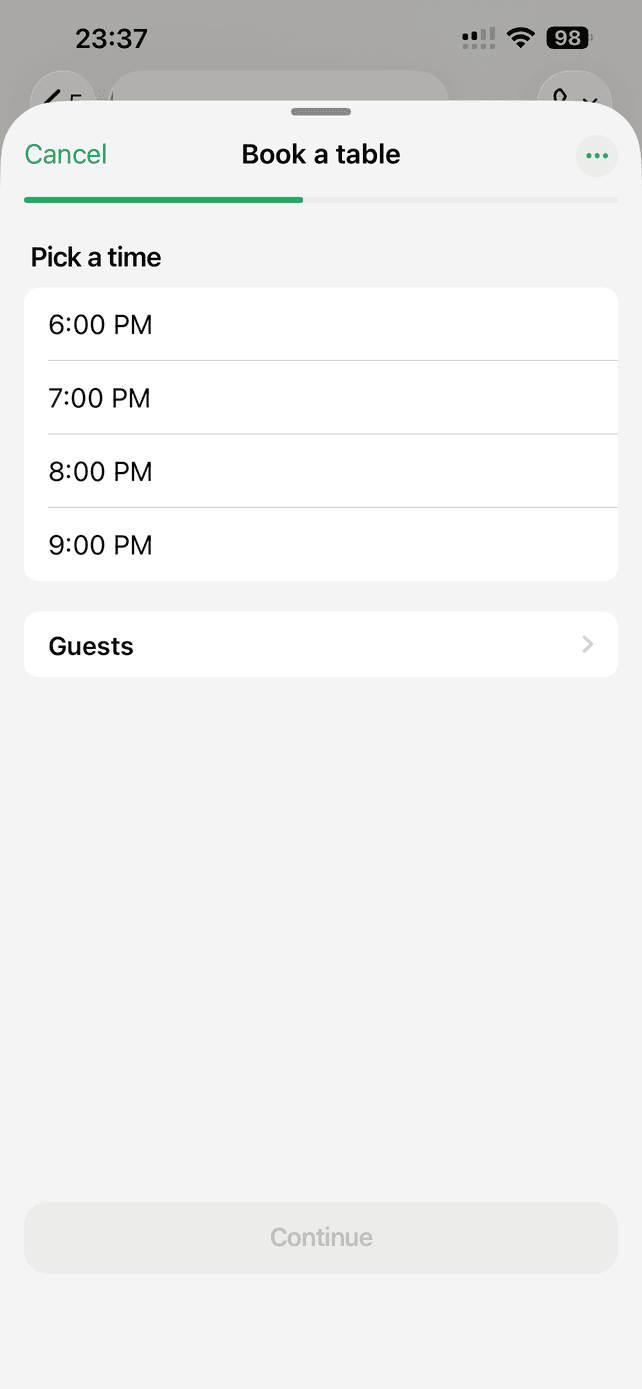
- Your customer asks to book a table. Your chatbot replies with a Book a table button, and the customer taps it.
- The form opens inside WhatsApp. Your chatbot has already filled in the available times. The customer picks one and sends the form.
- Your chatbot reads the answers and replies straight away. You see the answers in your conversation history in Chat Data (Chat Logs) too.
Approved messages (WhatsApp templates)
Use an approved message when it should look the same every time, with your own wording, picture and buttons. Your chatbot fills in the blanks, and you can follow each one in Chat Data: delivered, read and answered.
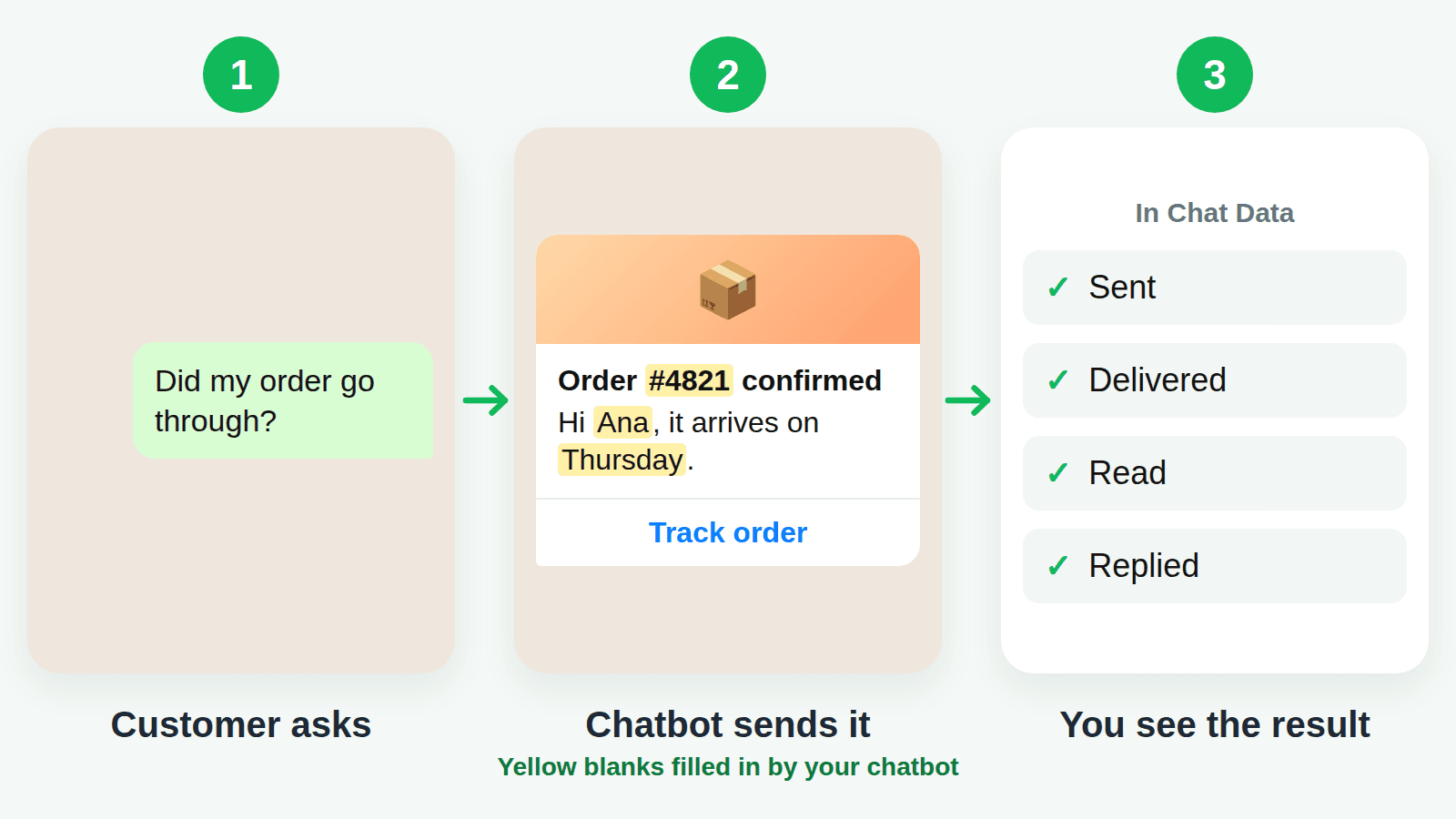
- Your customer asks whether their order went through.
- Your chatbot sends your approved message with its picture and buttons, and fills in the blanks: the name, order number and delivery day.
- You see in Chat Data whether the message was delivered, read and answered.
Good to know
- You stay in charge. When you set up a form or message, you can set some details yourself, such as your restaurant's name, so they're always the same. Your chatbot fills in the rest.
- Works if you connected WhatsApp to Chat Data by signing in with Meta (the company that owns WhatsApp). It doesn't work with the QR-code (WhatsApp Web) connection.
- Your customers stay in charge too. Approved messages that advertise something never go to customers who asked not to get them, and each time your chatbot answers, it sends no more than one approved message, so customers aren't flooded.
- WhatsApp bills you for each approved message.
Get started
- Create your form or message in WhatsApp Manager, Meta's tool for WhatsApp businesses. Messages must be approved by WhatsApp before you can use them.
- In Chat Data, open Settings → Actions and choose WhatsApp Flow or WhatsApp Template.
- Pick your form or message, describe when your chatbot should send it, and save.