WhatsApp Business Auto Reply: Setup, Examples, and AI Replies

Samuel Su
on November 7, 2026Founder & CEO
9 min read
WhatsApp Business Auto Reply: The Short Answer
A WhatsApp Business auto reply is built into the free WhatsApp Business app. You get three tools under the Tools tab: an away message that answers on a schedule, a greeting message that welcomes new customers, and quick replies you can send with a shortcut. Setup takes a few minutes on Android or iPhone.
These replies send fixed text. They tell a customer you got their message. They can't answer what the customer actually asked.
If you want real answers at 2 a.m., you can connect the same number to an AI agent and keep using the app. This guide covers both: the built-in setup with exact menu names from WhatsApp's Help Center, copy-ready message examples, and how to add AI replies without giving up your phone.
TL;DR
- Away message: Tools > Away message. Schedule it for always, a custom time, or outside business hours.
- Greeting message: Tools > Greeting message. Sent on a customer's first message and after 14 days of no messages.
- Quick replies: Tools > Quick replies. Up to 50 saved replies. You still send them by hand.
- Limit: static replies say the same thing to everyone.
- Fix: keep the app and connect the number to an AI agent. Chat Data's Auto Off makes the AI step back when you reply yourself.
How to Set Up an Away Message in WhatsApp Business
An away message tells customers you are busy or away from your phone. You choose when it goes out and who gets it. The steps below follow WhatsApp's "How to use away messages" article, checked November 2026.
- Open the WhatsApp Business app and go to the Tools tab.
- Tap Away message.
- Turn on Send away message.
- Edit the text. On Android, tap the message under Away message, edit it, and tap OK. On iPhone, tap the message under Message, edit it, and tap Save.
- Tap Schedule and pick one option:
- Always send: sends at all times.
- Custom schedule: sends only during the period you set.
- Outside of business hours: sends only outside your business hours. This option only shows up if you have set business hours in your business profile.
- Tap Recipients and pick one option:
- Everyone: anyone who messages you while the away message is on.
- Everyone not in address book: only people who aren't saved in your contacts.
- Everyone except…: everyone except the contacts you pick.
- Only send to…: only the contacts you pick.
- On Android, tap Save.
One catch: WhatsApp says your phone needs an active internet connection to send away messages. If the phone is off or offline, the auto reply doesn't go out.
How to Set Up a Greeting Message
A greeting message is sent automatically when a customer messages you for the first time. It is sent again when they message you after 14 days with no messages in that chat. Source: "How to use greeting messages".
- Go to the Tools tab and tap Greeting message.
- Turn on Send greeting message.
- Edit the text. On Android, tap Greeting message, edit it, and tap OK. On iPhone, tap the message under Message, edit it, and tap Save.
- Tap Recipients and choose who gets it:
- Everyone
- Everyone not in address book (on iPhone this option is called Exclude my contacts)
- Everyone except…
- Only send to…
- On Android, tap Save.
The greeting has no schedule. It fires on the first-message and 14-day rules only.
If your greeting isn't sending, WhatsApp suggests these checks:
- The customer may have messaged you in the last 14 days, so no greeting is due.
- Your recipient setting (Only send to… or Everyone except…) may leave them out.
- Turn Send greeting message off, wait a moment, and turn it on again.
- Update the WhatsApp Business app and restart your phone.
- If Meta Business Agent (Meta's own AI in the app) is connected, greetings are turned off until you delete it.
How to Use Quick Replies
Quick replies are not automatic. They are saved messages you send with a shortcut, which saves typing on questions you answer every day. You can store up to 50, and they can include images and videos. Source: "How to use quick replies".
To create one:
- Go to the Tools tab and tap Quick replies.
- Tap the add (+) icon.
- Tap Message (on iPhone, Enter message) and write the reply.
- Tap Shortcut and set a keyword.
- Tap Save.
To send one: open a chat and type / in the message box, then pick the reply. You can also tap the attach icon and choose Quick reply (on iPhone, Quick replies). The text lands in the message box so you can edit it before sending.
The app also builds default quick replies from your business profile, such as your hours and address. Fill in every section of your profile to get more of them. Media in quick replies isn't supported on WhatsApp Web or Desktop.
WhatsApp Auto Reply Message Examples You Can Copy
Good auto replies do three things. They thank the customer. They say when a person will answer. They ask for the detail you'll need, so the first human reply can solve the problem. Replace the parts in square brackets.
Away message (busy, during the day)
Thanks for messaging [Business name]! We're with other customers right now and will reply within [2 hours]. To help us move fast, tell us what you need and include your order number if you have one.
After-hours message (use with "Outside of business hours")
Hi! We're closed right now. Our hours are [Mon–Fri, 9 a.m.–6 p.m.]. Leave your question here and we'll answer first thing when we open. For prices and opening times, see [website].
Greeting message (first contact)
Hi, welcome to [Business name]! How can we help today? You can ask about [products], [bookings] or [delivery]. A team member will reply shortly.
Holiday message (use "Custom schedule")
Happy holidays from [Business name]! We're closed from [date] to [date] and will reply to every message when we're back on [date]. Orders placed online still ship on [date].
Order status request
Thanks for reaching out about your order! Please send your order number and the email or phone number you ordered with. We'll check and get back to you within [time].
Booking or appointment request
Thanks for your message! To book, send the service you want, your preferred day and time, and your name. We'll confirm your slot as soon as we're back.
Keep each one short. On a phone screen, three lines is plenty.
The Limit of Static Auto Replies
Look at the examples again. Every one of them says "we'll get back to you." That's the ceiling of a fixed auto reply.
- It can't answer the question. "Do you have this in size M?" gets the same reply as "Where's my order?"
- The customer still waits. The away message buys time. It doesn't close the conversation.
- It depends on your phone. WhatsApp sends away and greeting messages from the device, which needs to be online.
- Quick replies need you. They are faster typing, not automation.
Many customers ask the same handful of things: hours, prices, stock, delivery times, booking. An AI agent trained on your website and documents can answer those on the spot, at any hour, and pass the rest to you.
How to Add AI Replies on Your Existing Number (and Keep the App)
You don't have to choose between the app and automation. Meta supports connecting a number that is already on the WhatsApp Business app to the API. This is often called coexistence. One-to-one chats are mirrored between the app and the API, according to Meta's coexistence documentation.
With Chat Data's coexistence setup, your AI agent answers on the same number your customers already use. You keep the app on your phone and step in whenever you want.
Before you start: you need the WhatsApp Business app version 2.24.17 or later. A number on regular (personal) WhatsApp must move to the WhatsApp Business app first.
Connect your number to Chat Data
- In Chat Data, open your chatbot and go to Integrations > WhatsApp > Connect.
- Meta's signup window opens. Sign in with Facebook.
- Choose or create your Meta business portfolio.
- Enter the number that's on your WhatsApp Business app, or choose to connect your existing WhatsApp Business app.
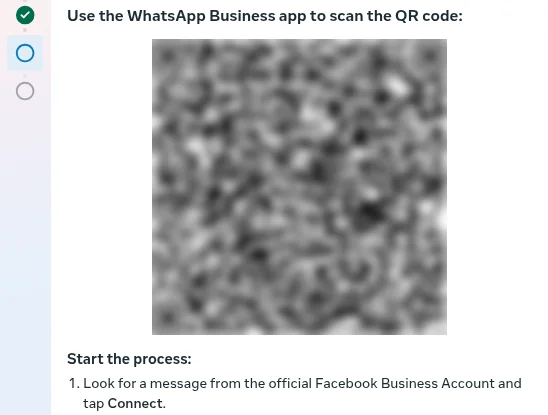
- Scan the QR code with the WhatsApp Business app.
- In the app, tap Connect on the message from Meta, then confirm.
- Click Finish.
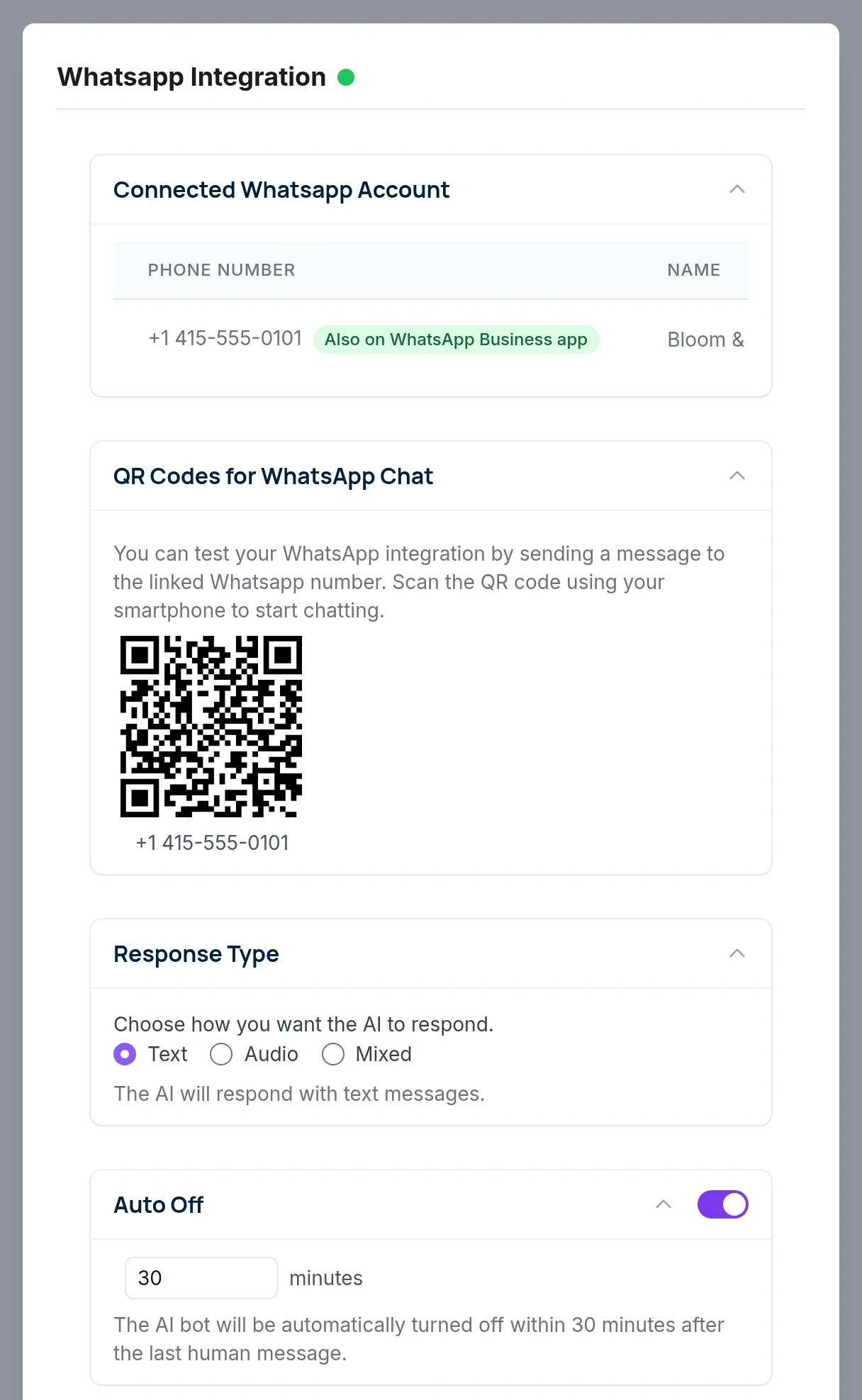
When it's done, the number shows Also on WhatsApp Business app in the integration. A brand-new number may need a few days of normal use in the app before Meta accepts it.
Make the AI step back when you reply: Auto Off
Auto Off is on by default. When you or a teammate replies in a chat, the AI stays silent in that conversation for 30 minutes after the last human message. You can set it anywhere from 1 minute to 1 week. This works for replies you send from the phone app too.
You can also switch the AI off for a single conversation in Chat Data Live Chat with the robot button.
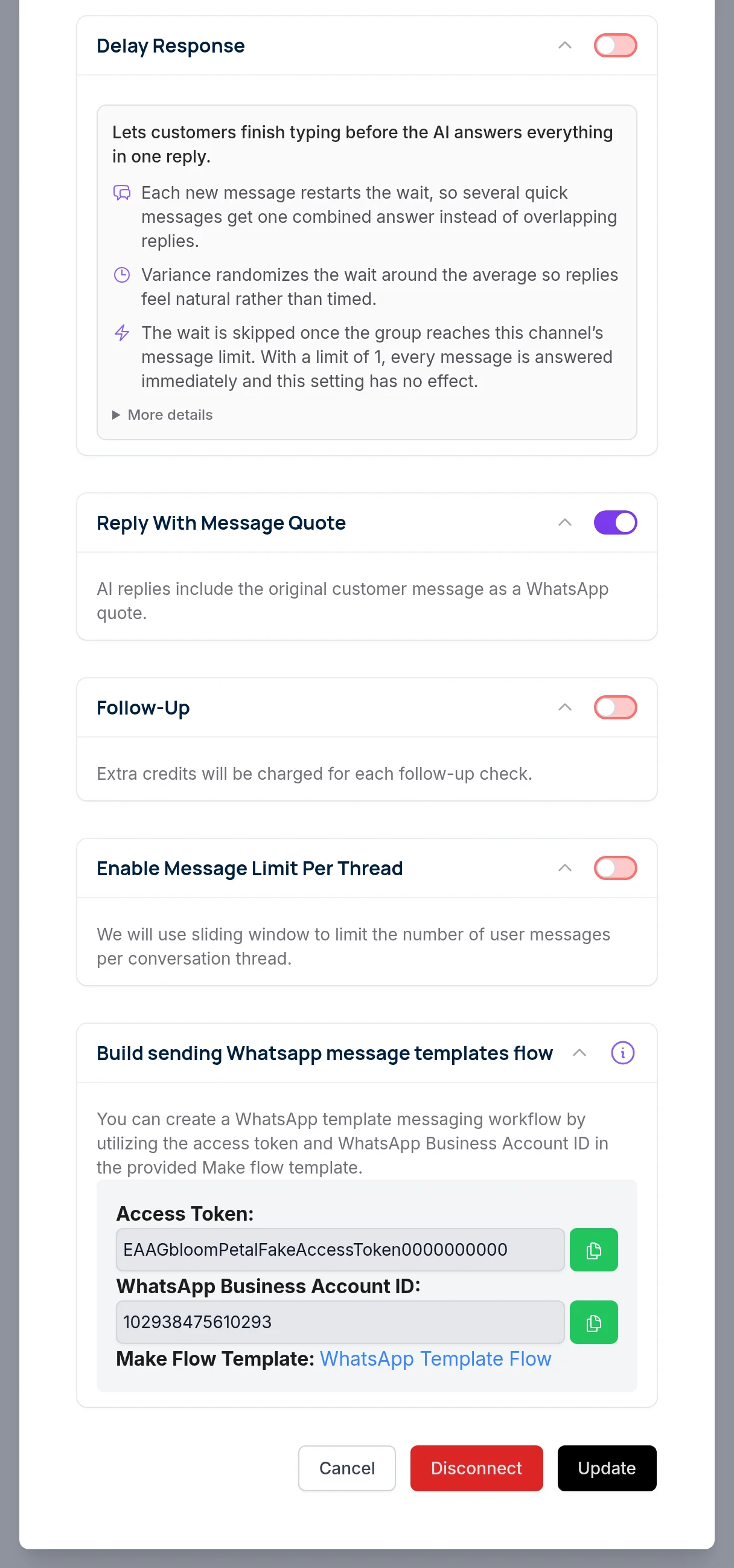
Answer bursts of messages once: Delay Response
Customers often send three short messages in a row. Delay Response (off by default) waits until they finish typing, then answers everything in one reply. Each new message restarts the wait.
See every conversation: Live Chat
Live chat is off by default. Turn it on in Settings > Live Chat to get a shared inbox and email alerts. Replies you send from the phone app also show up there, so your team sees the full thread.
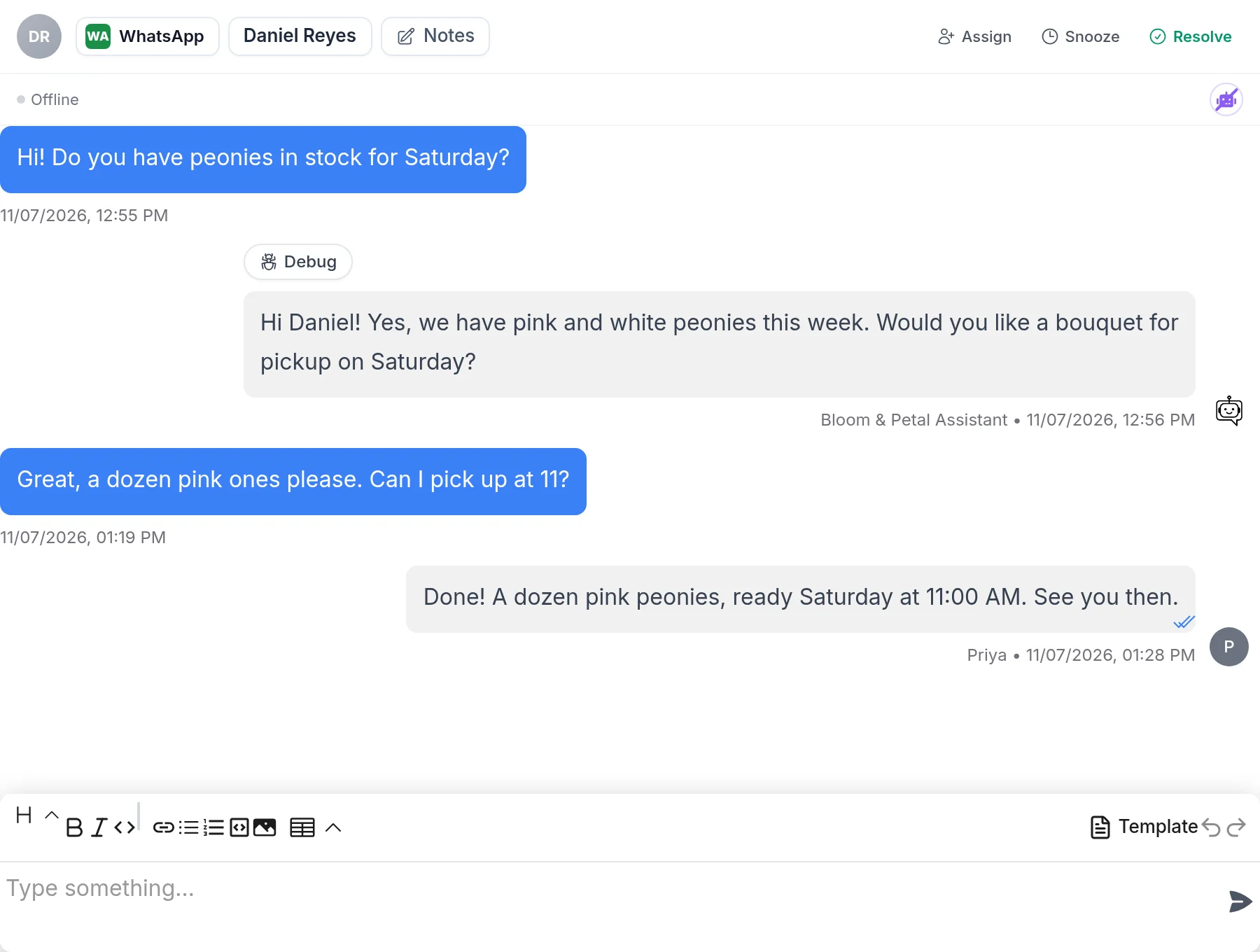
In the chat above, the AI answered the first question. A team member, Priya, handled the booking. The robot button at the top shows the AI is off for this conversation.
Should You Keep the App's Away and Greeting Messages On?
Meta's coexistence documentation lists the app's messaging tools (greeting message, away message, quick replies, labels) as "No change" in the app after onboarding, and "Not supported" on the Cloud API. In other words, they remain app features. The API side, where your AI agent works, doesn't use them.
Meta doesn't spell out how an app auto reply and an API reply behave in the same chat. Our advice: let the AI agent do the answering and turn off the app's away and greeting messages. That way a customer gets one useful reply instead of a canned notice plus an answer. Keep quick replies for the chats you handle yourself.
What Changes in the App After You Connect
A few app features change once the number is also connected to the API:
- Linked devices are disconnected. Link them again afterwards (WhatsApp for Windows and WearOS aren't supported).
- Broadcast lists become read-only.
- Disappearing messages, view once and live location are turned off for one-to-one chats.
- Groups, calls and business tools stay as they were.
Open the WhatsApp Business app at least every 13 days. If it sits unused for about 14 days, WhatsApp disconnects the number from the API and the AI stops getting messages. Chat Data also starts from the next message; earlier chats aren't imported.
Keep the app in the setup. If someone connects a number without the app, it's registered on the Cloud API only and can't be used in the WhatsApp Business app. Getting it back means deleting the number in Meta WhatsApp Manager and registering it again. Connecting the app number is the setup we recommend for almost every small business. For a deeper comparison, read WhatsApp Business app vs API.
What AI Auto Replies Cost on WhatsApp
AI replies to customers who messaged you are "service" messages under Meta's rules. As of November 2026, Meta's pricing page says each business phone number gets 1,000 free service messages per month, then charges per message. Meta bills your WhatsApp Business account directly. Messages to customers after their 24-hour window has closed need an approved template; see our guide to WhatsApp message templates.
For Chat Data's own plans, see pricing.
Next Steps
Start with the free tools: set an after-hours away message and a greeting today. When you notice the same questions coming in again and again, connect your number to an AI agent and let it answer them, while you keep the app for the conversations that need you.
Read more about keeping the WhatsApp Business app with an AI agent, see what the WhatsApp chatbot can do, or follow the WhatsApp integration guide step by step.
Frequently Asked Questions
How do I set an auto reply on WhatsApp Business?
Open the WhatsApp Business app, go to the Tools tab and tap Away message. Turn on Send away message, edit the text, pick a schedule (Always send, Custom schedule or Outside of business hours) and choose recipients, then save. The steps are almost the same on Android and iPhone; only the edit and save buttons differ.
What is the difference between a greeting message and an away message?
A greeting message goes out when a customer messages you for the first time, or after 14 days without messages in that chat. An away message goes out on the schedule you choose, such as outside business hours. Use the greeting to welcome people and the away message to tell them when you will reply.
What is a good automatic reply message?
A good auto reply thanks the customer, says when a person will answer, and tells them what to send now so you can help faster. Keep it to two or three short sentences. If you can, point to a place where they can get an answer right away, such as your website or order page.
Why is my WhatsApp Business greeting message not sending?
WhatsApp lists a few common causes. The customer may have messaged you in the last 14 days, your recipient setting may exclude them, or your phone may be offline. WhatsApp also suggests turning the feature off and on, updating the app and restarting your phone.
Can a WhatsApp auto reply answer customer questions?
No. The built-in away and greeting messages send the same fixed text to everyone, whatever they asked. To answer the actual question, you need an AI agent: Meta Business Agent inside the app where Meta offers it, or your own agent connected to the number, such as Chat Data, which also lets you keep using the WhatsApp Business app.
Can I use an AI auto reply bot and still use the WhatsApp Business app?
Yes. Meta supports connecting a number that is already on the WhatsApp Business app to the API, and Chat Data uses this to add an AI agent to your existing number. You keep chatting from your phone, and Auto Off keeps the AI quiet in a chat for 30 minutes (by default) after you reply.