WhatsApp Broadcast Messages: Lists, Limits, and Bulk Campaigns

Samuel Su
on November 7, 2026Founder & CEO
9 min read
A WhatsApp broadcast message is one message you send to many contacts at once, where each person receives it as a private one-to-one chat. Broadcast lists in the WhatsApp and WhatsApp Business apps are the built-in way to do it, but they are small (256 contacts per list) and only reach people who saved your number. To message hundreds or thousands of customers, the safe route is approved template campaigns on the WhatsApp Business Platform. This guide covers both, plus the shortcuts that get numbers banned.
TL;DR
- Broadcast lists: up to 256 contacts per list, unlimited lists, and only contacts who saved your number receive the message.
- Business broadcasts: a paid feature in the WhatsApp Business app in some countries. It can reach customers who have not saved your number. Meta reviews each one.
- Bulk sender tools: WhatsApp's terms forbid bulk and automated messaging from the apps. Unofficial apps can get your number temporarily or permanently banned.
- At scale: send approved templates to opted-in customers through the WhatsApp Business Platform. Limits start at 250 unique customers per 24 hours and grow with quality.
- Best setup: keep the WhatsApp Business app and connect the same number to Chat Data (coexistence). Campaigns replace broadcast lists, and an AI agent answers the replies.
How do I send a broadcast message on WhatsApp?
On the regular WhatsApp app (Android), broadcast lists live in the Chats menu (WhatsApp Help Center):
- Tap Chats.
- Tap More (three vertical dots) > Broadcast lists.
- Select the contacts you want.
- Confirm, then type and send your message.
In the WhatsApp Business app, the menu is called Business Broadcast (WhatsApp Help Center):
- Go to Chats > More (three dots) > Business Broadcast, or Tools > Business Broadcast (on iPhone: Settings > Business broadcast).
- Add contacts, or start from a label: Chats > More > Lists, open the label, then More > Send business broadcast.
- Confirm and send.
Each recipient sees your message as a normal chat from you. When they reply, the reply comes only to you. Other people on the list never see it. That is the key difference from a group: a broadcast is one-to-many, not a shared conversation.
To edit a list, open it and go to Broadcast list info (or Audience info in the Business app), then Edit recipients. You can rename or delete the list from the same screen.
WhatsApp broadcast list limits
WhatsApp's help center lists these rules for broadcast lists (WhatsApp Help Center):
- 256 contacts per list. You can create as many lists as you like.
- Saved number required. Only people who have your number in their phone contacts receive the message.
- Phone only. Broadcast lists are not supported on WhatsApp for Windows, Mac or Web.
- Monthly limit in some countries. WhatsApp says people in some countries may see a monthly broadcast limit, and this is rolling out gradually.
Meta also changed the Business app in 2025. In some countries, "marketing messages" are now called business broadcasts, a paid message type you find under Tools > Business broadcasts. You pick an audience from imported contacts, add media, text and an optional button (catalog, custom reply, phone call or website), and Meta reviews the message before it is delivered. WhatsApp notes the feature is only available in limited countries, so you may not see it yet (WhatsApp Help Center).
Why isn't my WhatsApp broadcast reaching everyone?
Almost always, it is the saved-number rule. WhatsApp states it plainly: broadcast list messages only reach customers who have your business number in their contacts. Anyone who has not saved you is skipped (WhatsApp Help Center).
Fixes, in order of effort:
- Ask customers to save your number. Put it on receipts, your website and your first reply.
- Turn the broadcast into a marketing message. WhatsApp shows a banner on your latest broadcast group that turns it into a business broadcast. The audience is set to customers who did not get the broadcast. This is paid.
- Move to template campaigns. Templates sent through the WhatsApp Business Platform do not depend on saved contacts. They depend on opt-in.
Reports can cut reach too. WhatsApp's "use WhatsApp responsibly" page warns that frequent broadcasts may lead people to report your messages, and that it bans accounts reported many times (WhatsApp Help Center).
Is WhatsApp broadcast free?
It depends on which kind of broadcast you mean:
| Method | Cost (as of November 2026) | Who it reaches |
|---|---|---|
| Broadcast list (app) | No fee described in WhatsApp's help pages | Only contacts who saved your number, 256 per list |
| Business broadcast (Business app) | Fee per delivered message, priced by recipient country | Contacts you choose, including those who haven't saved you |
| Template campaign (Business Platform) | Charged per delivered message by category and recipient country | Opted-in customers, within your messaging limit |
For business broadcasts, WhatsApp charges up front for every recipient you choose and credits back the cost of any message not delivered within five days. You need a payment method to send business broadcasts; Meta Verified subscribers get some free messages (WhatsApp Help Center).
On the WhatsApp Business Platform, Meta moved to per-message pricing on July 1, 2025 (Meta pricing). Template messages (marketing, utility, authentication) are charged per delivered message, and the rate depends on the category and the recipient's country code. Meta bills your WhatsApp Business account directly, not through Chat Data. Replies within 24 hours of a customer's last message are service messages: each number gets 1,000 free per month, then they are charged. For the Chat Data side, see our pricing.
Why bulk WhatsApp sender tools get numbers banned
Most "bulk WhatsApp sender" tools push mass messages out of a regular WhatsApp or WhatsApp Business account, often through an unofficial app. That breaks WhatsApp's rules in three places:
- Terms of Service. WhatsApp's terms forbid "sending illegal or impermissible communications such as bulk messaging, auto-messaging, auto-dialing, and the like." (WhatsApp Terms of Service)
- Unofficial apps. WhatsApp says using or linking your account to unofficial apps violates its terms, and your account "might also be temporarily or permanently banned." (WhatsApp Help Center)
- Detection. WhatsApp uses machine learning and user reports to detect and ban accounts that send unwanted automated messages. Its help center says its products "are not intended for bulk or automated messaging" and that it takes legal action against companies tied to this abuse (WhatsApp Help Center).
A ban hits the whole number: your customer chats and every place that number is printed.
The compliant way: template campaigns on the WhatsApp Business Platform
The WhatsApp Business Platform is Meta's official route for messaging customers at scale. Four rules shape every campaign:
- Opt-in first. Meta requires businesses to get opt-in before messaging people on WhatsApp. The opt-in must say the person is agreeing to messages from you and name your business. Tell people how to opt out, and honor it (Meta).
- Approved templates only. Outside the 24-hour customer service window, template messages are the only thing you can send. Each template is categorized as marketing, utility or authentication and reviewed by Meta (Meta). See our guide to WhatsApp message templates.
- Messaging limits. The limit counts unique customers you message outside a service window in a moving 24-hour period. New business portfolios start at 250, which can rise to 2,000, 10,000, 100,000 and unlimited. The limit is shared by every number in the portfolio. Past 2,000, it rises one level within 6 hours if your quality is high and you used at least half your limit in the last 7 days (Meta).
- Per-user marketing limits. WhatsApp may cap how many marketing templates one person receives from any business, based on their engagement. Those sends fail with error 131049 (Meta). And since April 1, 2025, Meta does not deliver marketing templates to WhatsApp users with US phone numbers (Meta).
Keep the app, add campaigns: coexistence
You do not have to give up the WhatsApp Business app to send campaigns. With coexistence, the same number stays on the app and is also connected to the Business Platform through Chat Data. You keep answering on your phone, and an AI agent answers on the same number. Replies you send from the app appear in Chat Data Live Chat. Read WhatsApp Business app vs API for the full comparison.
One change matters here. Once your number is connected via coexistence, WhatsApp makes your existing broadcast lists read-only, and you cannot create new ones. Campaigns in Chat Data replace them, without the 256-contact cap or the saved-number rule.
Also note:
- Meta fixes coexistence numbers at 20 messages per second (Meta). Campaigns from these numbers can't go faster than that.
- Open the WhatsApp Business app at least every 13 days. After about 14 days of no use, WhatsApp disconnects the number from the API side.
- Do not connect a number to the API without the app. It becomes API-only and is hard to move back.
How to send a WhatsApp marketing campaign in Chat Data
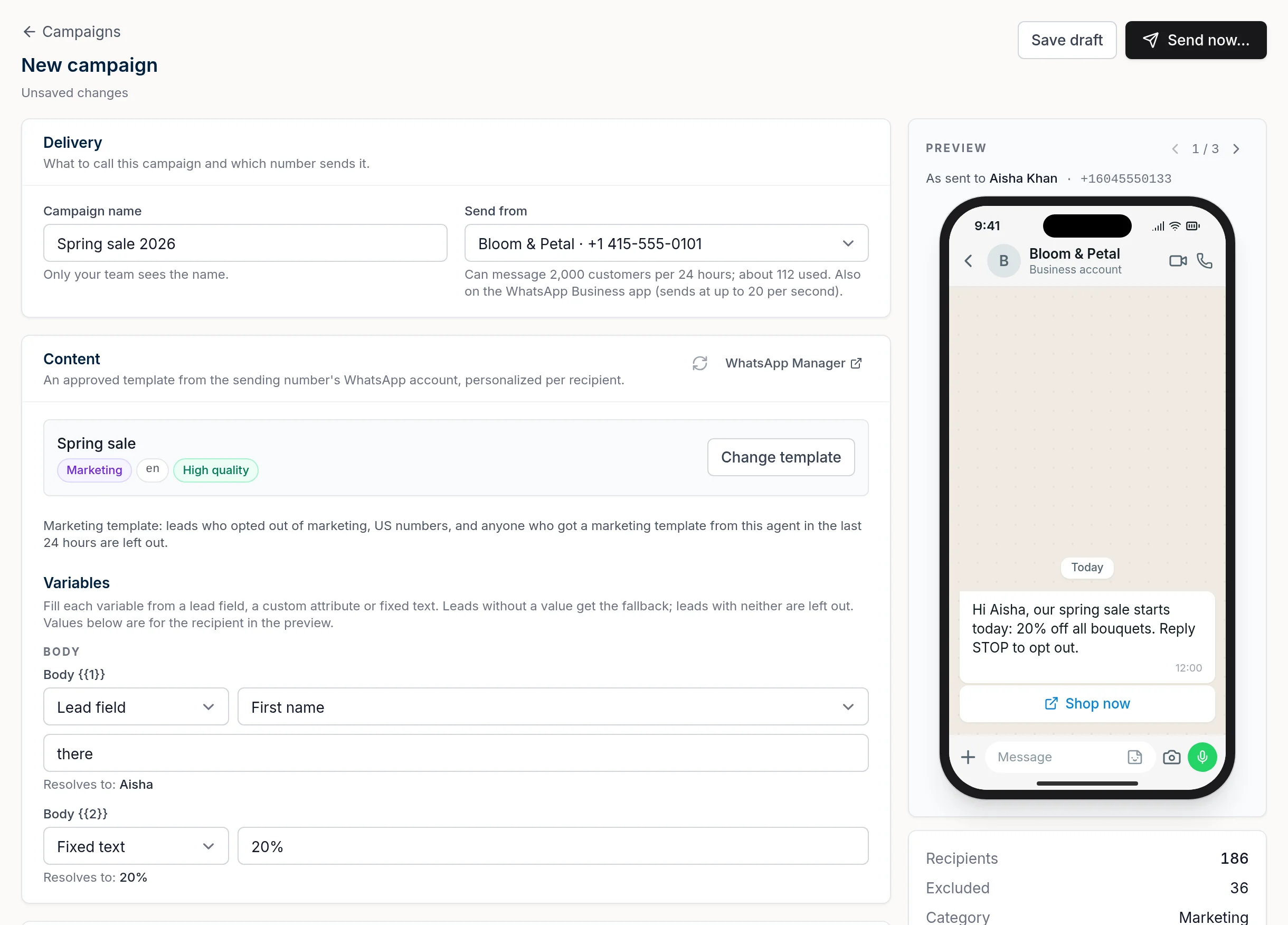
Before you start, connect your number (chatbot > Integrations > WhatsApp > Connect, then choose to connect your existing WhatsApp Business app) and have an approved template. Add a payment method in Meta's billing settings, or templates are not delivered. The WhatsApp integration docs cover setup.
- Open Outbound. In your chatbot menu, open Outbound and start a new campaign.
- Set Delivery. Name the campaign (only your team sees it) and pick the Send from number. Chat Data shows your current limit, such as "Can message 2,000 customers per 24 hours; about 112 used," and notes when the number is also on the WhatsApp Business app.
- Choose Content. Pick an approved template. Its category, language and quality badge show next to it. Fill each variable from a lead field, a custom attribute or fixed text, with a fallback. Leads with neither are left out. The phone preview on the right shows the message as each recipient will see it.
- Pick the Audience. Filter this agent's leads by name, tags (imports add a tag such as
), source, creation date, custom attributes or recent WhatsApp activity. Or switch to Phone numbers to paste or upload a list. Each number gets one message even if several leads share it.import-2026-11-03 - Check the exclusions. For a marketing template, Chat Data automatically leaves out leads who opted out of marketing, US numbers, and anyone who got a marketing template from this agent in the last 24 hours. Leads with no phone number are listed too.
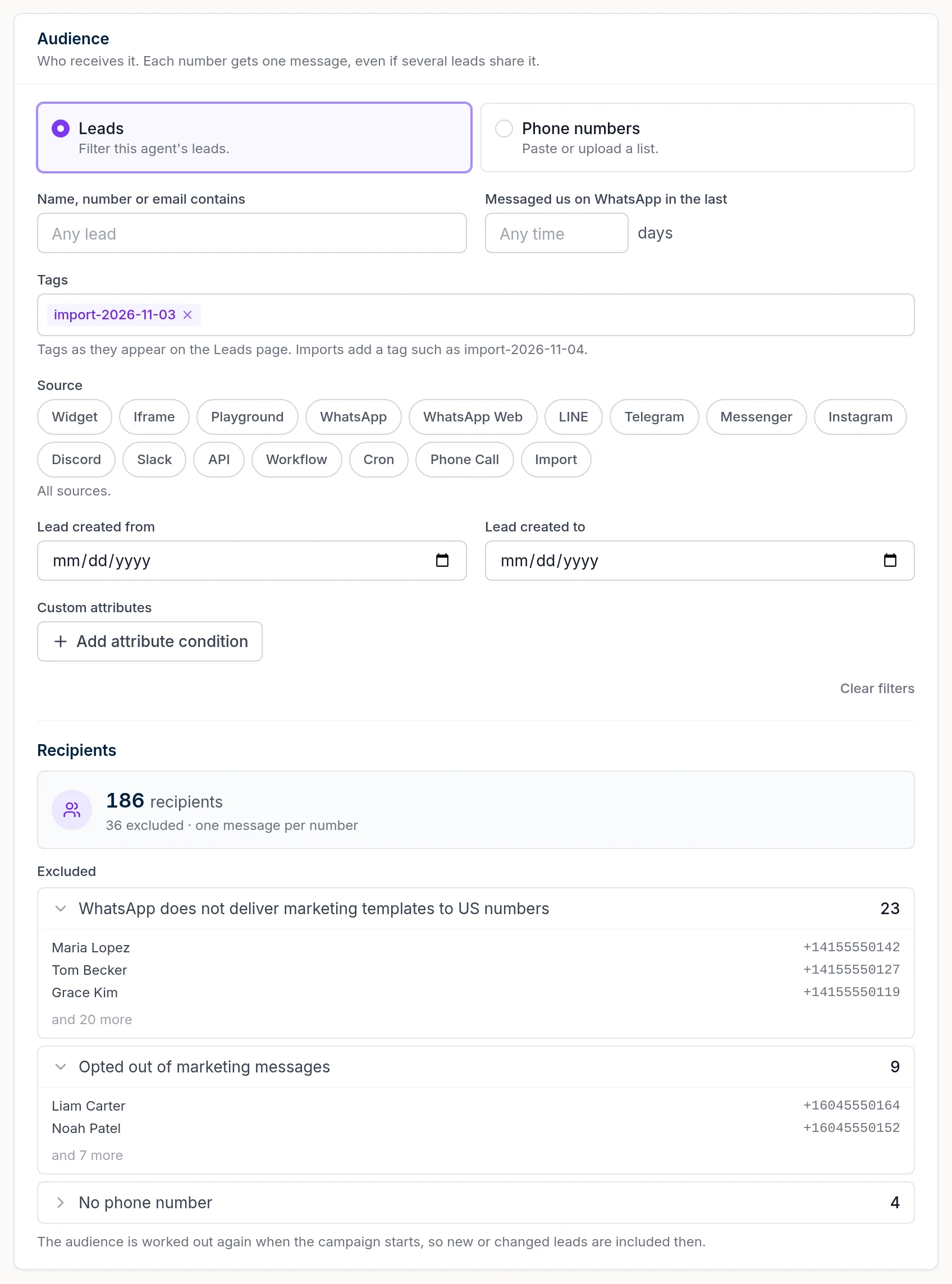
- Compare recipients with your limit. Chat Data shows the limit but does not hold recipients back. Its used count covers only the selected number, so if other numbers in your portfolio also send templates, leave room for their sends. If Recipients is higher than what is left, split the campaign.
- Choose who handles replies. AI replies lets your agent answer like any other WhatsApp message. Live chat opens a live chat request with the AI paused and a note naming the campaign, so your team answers.
- Send or schedule. Click Send now, or schedule a date and time. You can also save a draft.
After you send: track every recipient
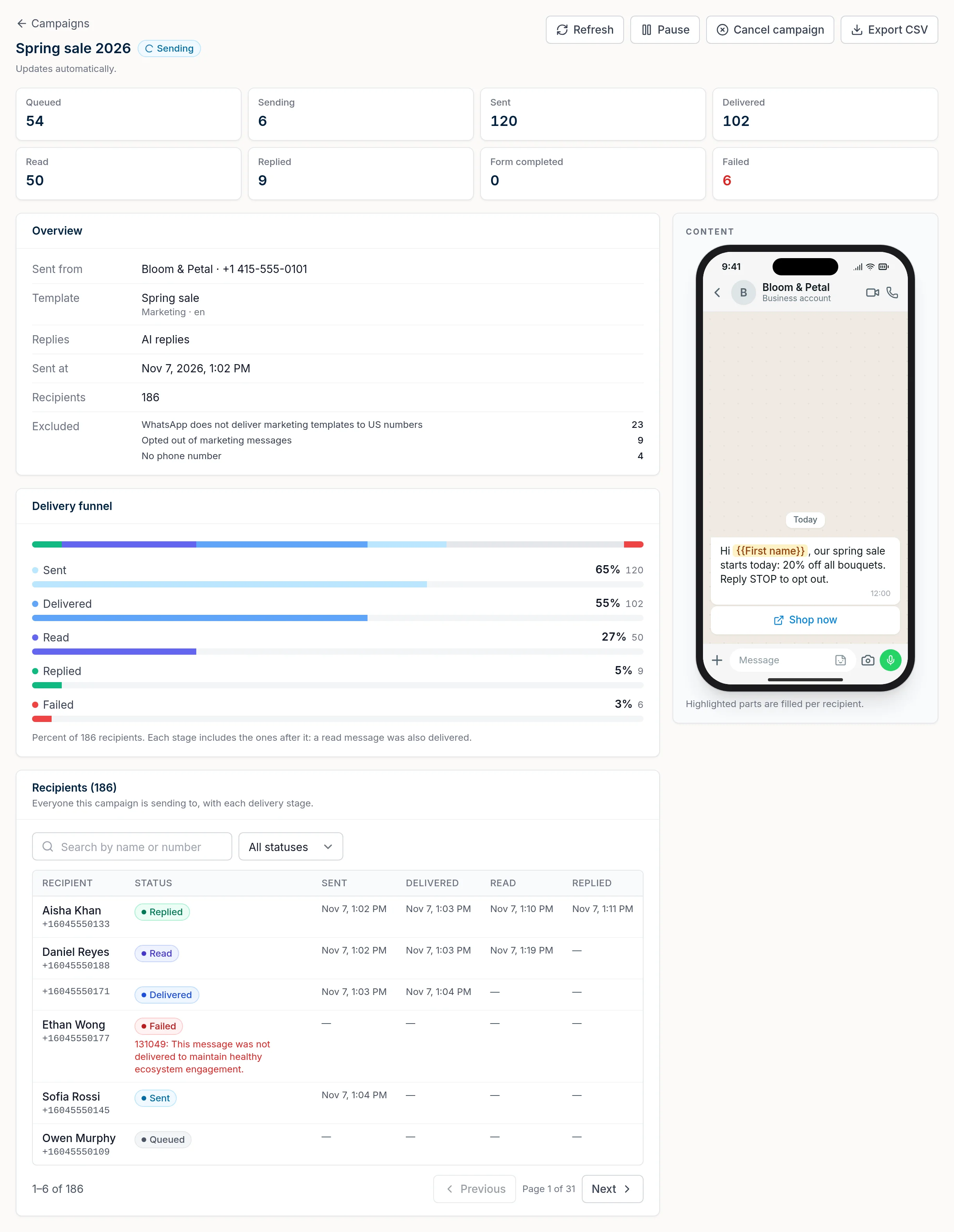
The campaign page updates automatically. It shows counts for queued, sending, sent, delivered, read, replied and failed, a delivery funnel, and a row per recipient with timestamps. You can pause, cancel or export a CSV.
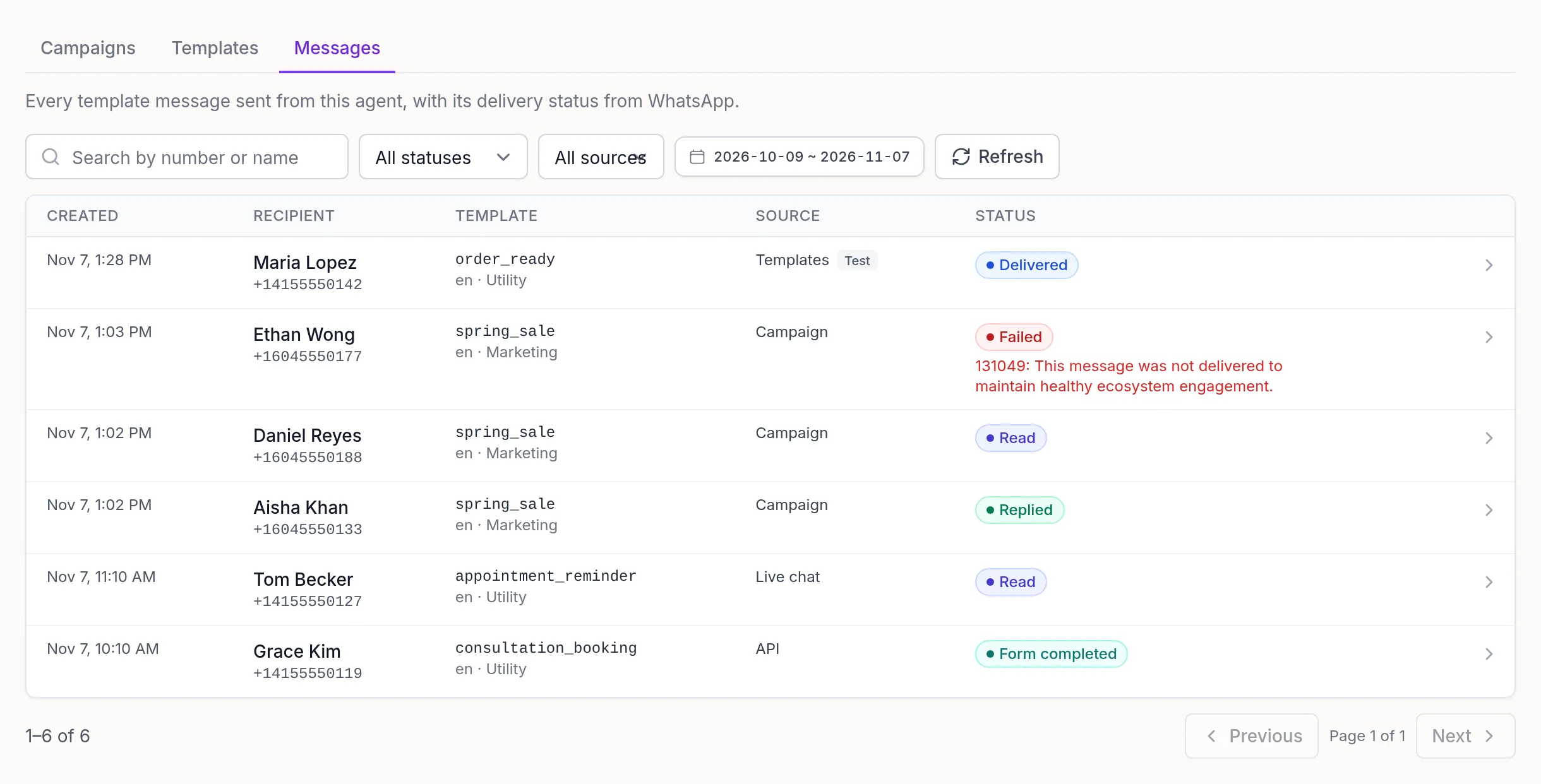
The Messages tab lists every template sent from the agent, from campaigns, Live Chat, the Templates tab or the API, with its WhatsApp status and failure reason. The codes you will see most (Meta error codes):
- 131049: not delivered "to maintain healthy ecosystem engagement" (the per-user marketing limit). Wait at least 24 hours before resending.
- 131050: the person stopped marketing messages from your business. Do not retry.
- 131026: undeliverable, for example the number is not on WhatsApp or the app is too old.
When customers reply, the 24-hour service window opens and your AI agent can answer freely, trained on your website and files. If you picked live chat, your team picks it up instead. To keep the AI answering in between campaigns, see WhatsApp Business auto reply.
The bottom line
Broadcast lists suit a small circle of customers who saved your number. Past that, they hit the 256-contact cap and the saved-number rule, and bulk sender tools put the whole number at risk. Template campaigns on the WhatsApp Business Platform are the way to reach many opted-in customers, and coexistence lets you send them without leaving the WhatsApp Business app. Start on the WhatsApp coexistence page or read the templates and campaigns changelog.
Frequently Asked Questions
How do I send a broadcast message on WhatsApp?
In the WhatsApp app on Android, tap Chats, then More (three dots) > Broadcast lists, pick contacts and confirm. In the WhatsApp Business app, go to Chats or Tools > Business Broadcast. Each recipient gets your message as a normal one-to-one chat.
Why isn't my WhatsApp broadcast message being sent to all people?
A broadcast list only reaches people who have saved your number in their phone contacts. Everyone else on the list gets nothing. Ask customers to save your number, or move to template campaigns, which do not depend on saved contacts.
Is WhatsApp broadcast free?
WhatsApp's help pages describe a fee for business broadcasts in the WhatsApp Business app, charged per delivered message and priced by the recipient's country. Template messages on the WhatsApp Business Platform are also charged per delivered message by category and country, billed by Meta to your WhatsApp Business account. Classic broadcast lists have no fee described in the help pages, but they are capped and only reach contacts who saved your number.
How many contacts can a WhatsApp broadcast list have?
Up to 256 contacts per list, and you can create as many lists as you like. WhatsApp says some countries may also see a monthly broadcast limit, rolling out gradually. Broadcast lists do not work on WhatsApp for Windows, Mac or Web.
Can a bulk WhatsApp sender get my number banned?
Yes. WhatsApp's Terms of Service forbid bulk messaging, auto-messaging and auto-dialing, and its help center says linking an account to an unofficial app can lead to a temporary or permanent ban. WhatsApp uses machine learning and user reports to find these accounts.
How do I send 10,000 messages on WhatsApp?
Use approved template messages on the WhatsApp Business Platform, sent only to people who opted in. New business portfolios start with a limit of 250 unique customers per 24 hours, which rises to 2,000, 10,000, 100,000 and unlimited as you send high-quality messages. Meta caps a number that is also on the WhatsApp Business app at 20 messages per second.
What happens to my broadcast lists if I connect my number to Chat Data?
When a number on the WhatsApp Business app is connected to the Business Platform (coexistence), WhatsApp makes existing broadcast lists read-only and you cannot create new ones. You keep chatting from the app as before. Campaigns in Chat Data replace broadcast lists for one-to-many messages.