WhatsApp Message Templates: Examples, Rules, and How to Send Them

Samuel Su
on November 7, 2026Founder & CEO
11 min read
WhatsApp message templates are the messages you send when the customer did not write first, or wrote more than 24 hours ago. Meta approves each one before you can use it. Below: when you need a template, the three categories, Meta's limits, why templates get rejected, 14 examples to copy, and how to send them from Chat Data while your number stays on the WhatsApp Business app.
What is a WhatsApp message template?
A template is a pre-approved message format that belongs to your WhatsApp Business account. Meta's own docs put it plainly: "Template messages are the only type of message that can be sent to WhatsApp users outside of a customer service window." (Meta)
That window works like this (Meta):
- It opens when a customer messages or calls your business. A 24-hour timer starts.
- Each new message or call from the customer resets it.
- While it is open, you can send free-form replies.
- When it closes, you can only send an approved template.
So you need a template to message a customer first, to follow up after 24 hours (say, "your order shipped" two days later), and for reminders or campaigns. Customers must also have opted in to hear from you.
The three WhatsApp template categories
Every template has one of three categories. The category also sets the price: Meta charges per delivered template by category and recipient country, billed to your WhatsApp Business account directly, not through Chat Data (as of November 2026; Meta pricing). Without a payment method in Meta's billing settings, templates aren't delivered. For Chat Data's own plans, see pricing.
| Category | What it is for | Example |
|---|---|---|
| Marketing | Promotions, offers, announcements, re-engagement. The most flexible type. | "Enjoy 15% off your next order." |
| Utility | Non-promotional messages tied to something the customer did or asked for. | "Your order 1047 is confirmed." |
| Authentication | One-time passcodes to verify a user. The most restricted type. | A login code. |
How Meta decides the category
You pick a category, but Meta checks it against the content (Meta).
- Mixed or unclear content counts as marketing. An order update with a discount in it is marketing.
- Utility can be approved as marketing. Since April 9, 2025, a utility submission that Meta judges to be marketing is approved as marketing.
- Approved templates are re-checked. A recurring review moves utility templates that should be marketing, usually with a one-day notice.
- You can appeal within 60 days.
The practical rule: keep utility templates strictly about the customer's own order, booking or account, with no upsell.
Template components and their limits
A template is built from a header, a body, a footer and buttons. These are Meta's limits as of November 2026 (Meta):
| Component | Limit |
|---|---|
| Header (optional) | Text up to 60 characters with 1 variable, or media: image, video or document. One header per template. |
| Body | Up to 1,024 characters. Accepts multiple variables. |
| Footer (optional) | Text only, up to 60 characters. No variables. |
| Buttons (optional) | Up to 10 in total, labels up to 25 characters. Quick replies: up to 10. URL: up to 2, each up to 2,000 characters with 1 variable at the end. Phone number: 1. Copy code: 1, up to 20 characters. |
Variables, sample values and naming rules
Variables carry each customer's details. Positional variables (
{{1}}{{2}}{{first_name}}Sample values are required. Every variable needs an example, such as "Maria" for
{{1}}{{2}}Language. Meta does not translate templates, so submit one version per language.
Names use lowercase letters, numbers and underscores only (for example
order_shippedAccount limits: 250 templates per WhatsApp Business account while your business portfolio is unverified, up to 6,000 once it is verified and a number has an approved display name. Templates unused for 12 months are archived (Meta).
How template approval works, and common rejection reasons
Meta reviews each template with automated and manual checks. A decision can take up to 24 hours. Only approved templates can be sent. Common rejection reasons Meta lists (Meta):
- Variables are missing or have mismatched curly braces.
- Variables contain special characters such as
,#
or$
.% - Variables are not sequential, for example
then{{1}}
.{{3}} - Too many variables for the length of the message.
- The message starts or ends with a variable.
- Sample values are missing.
- The body and footer copy an existing template word for word.
- Policy violations, such as asking for sensitive identifiers.
You can appeal a rejection. The appeal must include a sample, and Meta aims to decide within 24 hours.
Template quality, pausing and delivery limits
Quality rating. Each template is rated High, Medium or Low from usage, feedback and engagement (Pending while new). Negative feedback and low read rates pull it down (Meta).
Pausing. At the lowest rating, Meta pauses the template for 3 hours the first time and 6 hours the second. The third time it is disabled. Paused templates unpause on their own; a disabled one can be edited and resubmitted (Meta).
Messaging limit. The unique customers you can reach with templates in a rolling 24 hours starts at 250 for a new business portfolio and rises as you verify your business or send high-quality messages. All numbers in the portfolio share it (Meta).
Per-user marketing limits. WhatsApp may limit how many marketing templates one person receives from any business. A blocked send fails with error 131049, and Meta advises waiting at least 24 hours before resending (Meta).
US numbers. Starting April 1, 2025, Meta does not deliver marketing template messages to WhatsApp users with United States phone numbers. The send fails with error 131049 (Meta). Utility and authentication templates still reach US numbers, and Canada and other +1 countries still receive marketing templates.
14 WhatsApp template examples you can copy
These examples follow the rules above: no message starts or ends with a variable, footers carry no variables, and buttons stay under 25 characters. Replace
example.comOrder updates (utility)
1. Order confirmed
Hi {{1}}, thanks for your order {{2}}. Your total is {{3}} and we will message you here when it ships.
2. Order shipped
Header: Your order is on the way
Body: Hi {{1}}, order {{2}} has shipped with {{3}}. Tap the button below to track it.
Button (URL): Track order -> https://example.com/track/{{1}}
3. Ready for pickup
Hi {{1}}, your order {{2}} is ready for pickup at {{3}}. Please show this message at the counter.
Appointment reminders (utility)
4. Reminder with confirm buttons
Hi {{1}}, this is a reminder of your appointment with {{2}} on {{3}} at {{4}}. Reply here if you need to change it.
Quick replies: Confirm | Reschedule
5. Day-before reminder
Hi {{1}}, see you tomorrow at {{2}} for your {{3}}. Directions are in the button below.
Button (URL): Get directions -> https://example.com/visit
Payment reminders (utility)
6. Invoice due
Hi {{1}}, invoice {{2}} for {{3}} is due on {{4}}. You can pay securely with the button below.
Button (URL): Pay invoice -> https://example.com/pay/{{1}}
7. Payment received
Hi {{1}}, we received your payment of {{2}} for invoice {{3}}. Thank you, no action is needed.
Back in stock (marketing)
8. Restock alert
Header: (image of the product)
Body: Good news, {{1}}! The {{2}} you asked about is back in stock. Quantities are limited, so tap below to order.
Footer: Reply STOP to opt out
Button (URL): Shop now -> https://example.com/new
A restock alert promotes a product, so submit it as marketing.
Abandoned cart (marketing)
9. Cart reminder
Hi {{1}}, you left {{2}} in your cart. It is saved for you, and checkout takes less than a minute.
Button (URL): Finish checkout -> https://example.com/cart
10. Cart reminder with a code
Hi {{1}}, your cart is still waiting, and code {{2}} takes {{3}} off if you check out this week.
Button (copy code): {{2}}
Feedback
11. Rate your order
Hi {{1}}, how was your order {{2}}? Tap a rating below. It takes five seconds and helps us improve.
Quick replies: Great | Okay | Not good
Because it names the customer's own order, this can be approved as utility. A generic "rate us" survey with no order is marketing.
Re-engagement
12. Pick up an open question
Hi {{1}}, following up on your question about {{2}}. Reply here and we will pick it up where we left off.
Utility only if it continues the customer's own request. Add any offer and it becomes marketing.
13. We miss you (marketing)
Hi {{1}}, it has been a while! Here is {{2}} off your next order, valid for 7 days. Tap below to see what is new.
Button (URL): Browse new items -> https://example.com/new
Promotions (marketing)
14. Seasonal sale
Header: Spring sale starts today
Body: Hi {{1}}, everything in {{2}} is {{3}} off until Sunday. Tap below to shop before it ends.
Footer: Reply STOP to opt out
Button (URL): Shop now -> https://example.com/sale
How to send WhatsApp templates with Chat Data
The best setup is to keep your number on the WhatsApp Business app and connect it to Chat Data, called WhatsApp coexistence. You keep chatting from your phone, an AI agent answers on the same number, and templates work on it too. Connecting without the app puts the number on the API only, which is hard to undo (see WhatsApp Business app vs API).
Everything below is under Outbound in your agent's menu.
Step 1: Create the template and find it in Chat Data
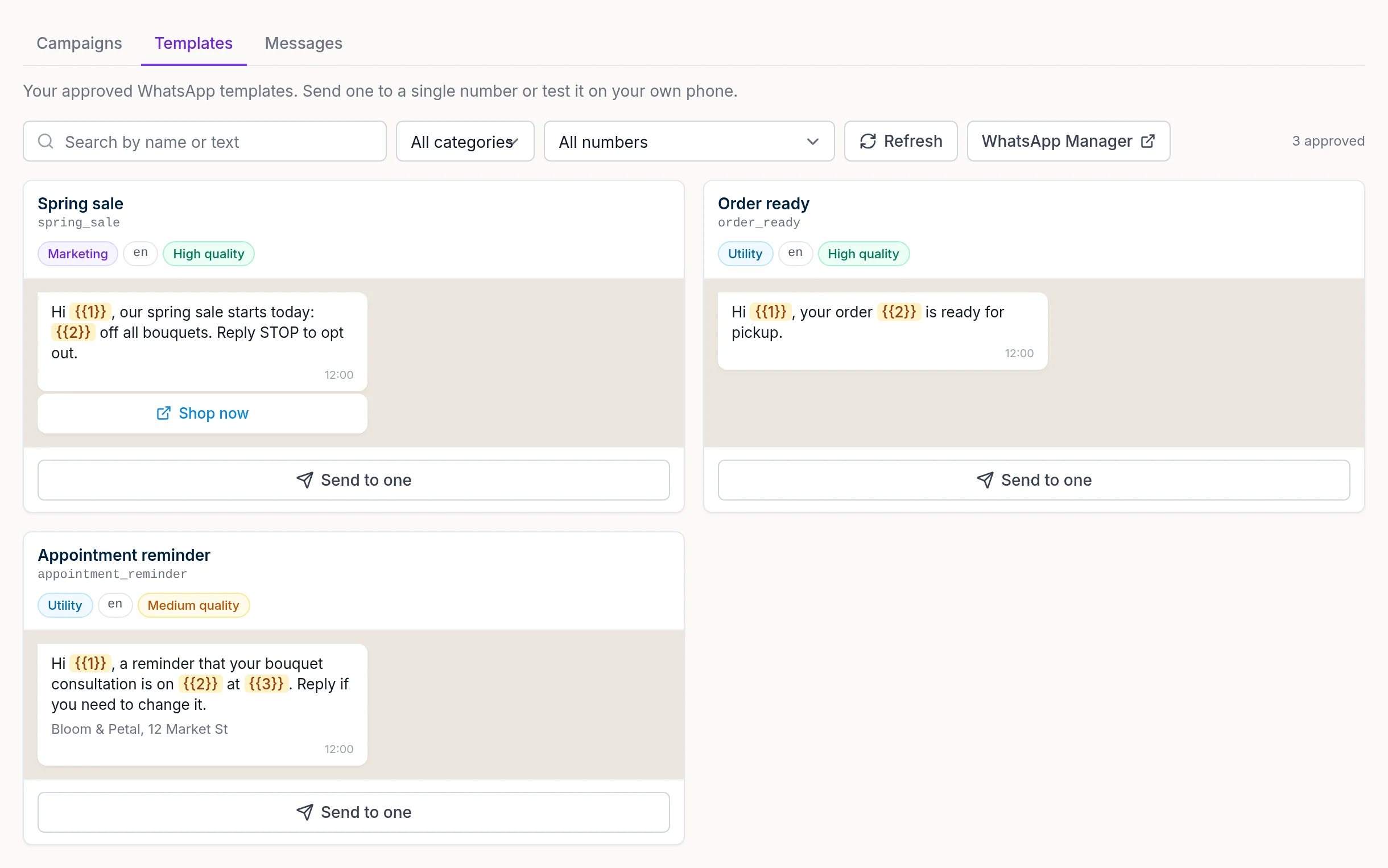
- Open your agent and go to Outbound > Templates.
- Click WhatsApp Manager. Create the template there: name, category, language, header, body, footer, buttons and a sample for each variable.
- Wait for Meta's review.
- Back in Chat Data, click Refresh to load newly approved templates.
Step 2: Send a template to one customer
- Click Send to one on an approved template.
- Pick From (your number) and enter To in international format.
- Fill in each variable. The preview updates as you type.
- Tick Send as a test if you are trying it on your own phone, then send.
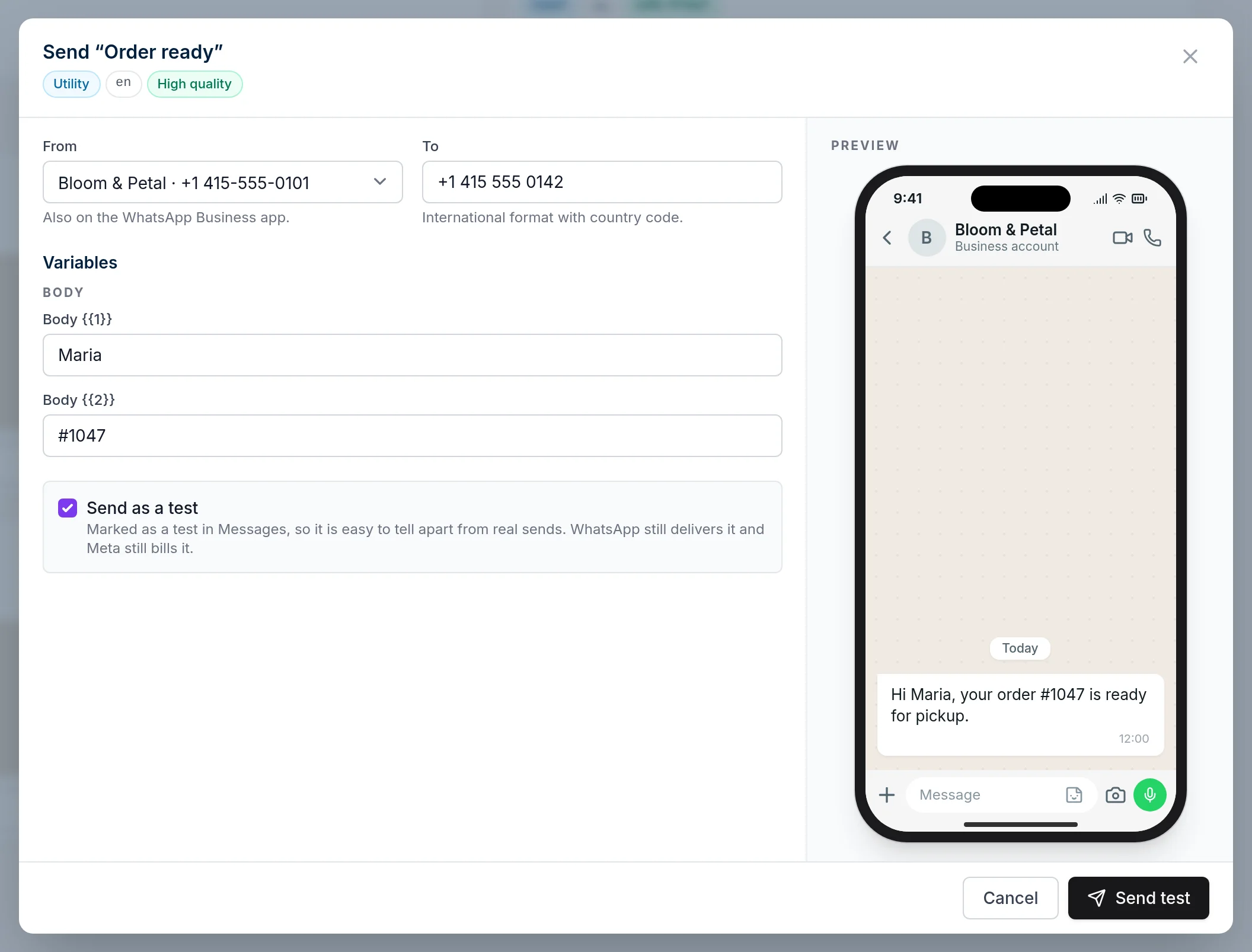
"Also on the WhatsApp Business app" under From means a coexistence number is sending. Test sends are marked in Messages, but WhatsApp still delivers them and Meta still bills them.
Step 3: Reopen a conversation from Live Chat
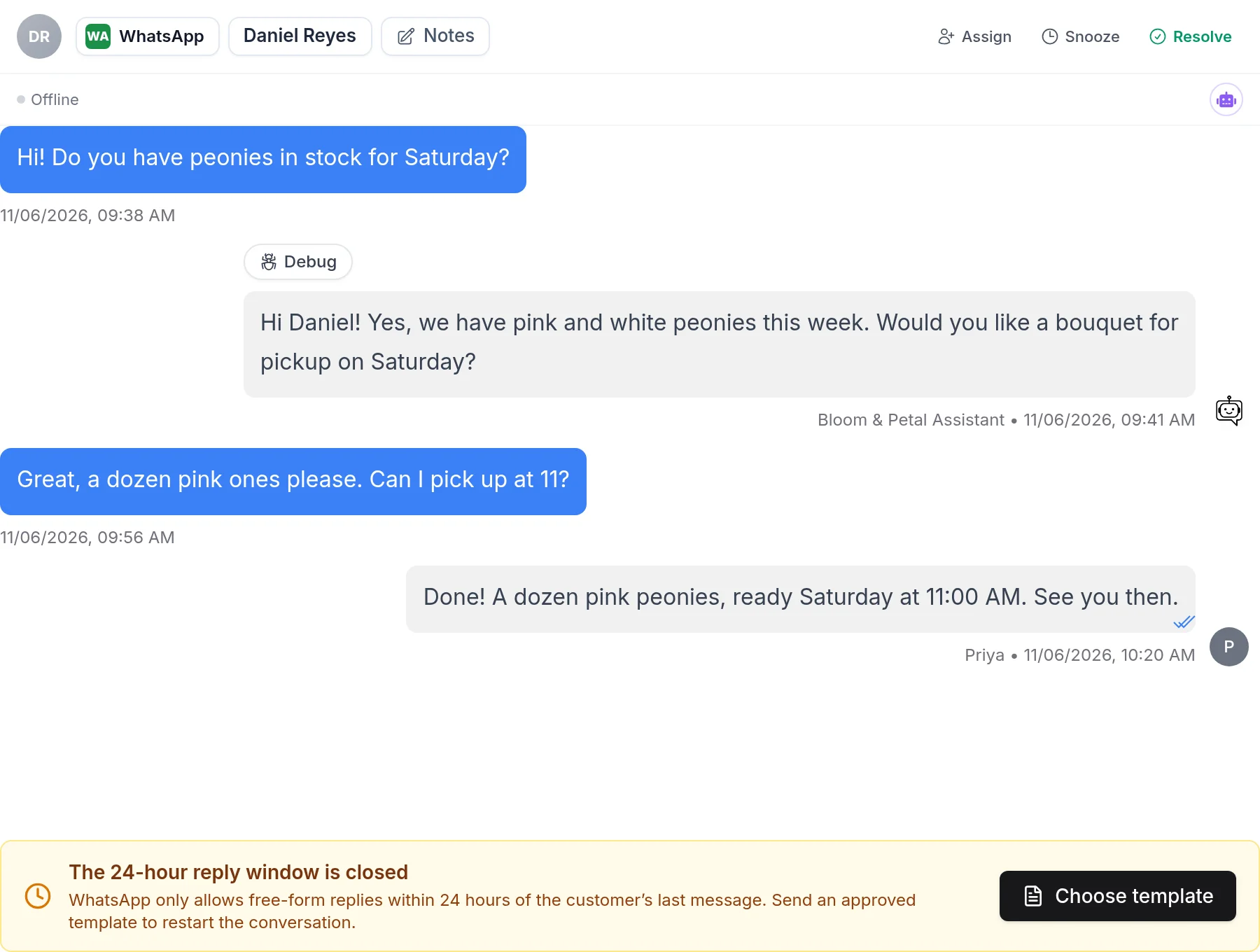
Turn on live chat under Settings > Live Chat (off by default). Once the 24-hour window closes, the reply box becomes a banner: "The 24-hour reply window is closed." Click Choose template, fill the variables and send. While the window is open, a template button sits in the composer toolbar.
Step 4: Send a campaign to many customers
- Go to Outbound > Campaigns and start a new campaign.
- Delivery: name it and choose the number to send from. Chat Data shows your current messaging limit, such as "Can message 2,000 customers per 24 hours; about 112 used."
- Content: pick an approved template. Fill each variable from a lead field, a custom attribute or fixed text, with a fallback.
- Audience: choose leads by tag or attribute (leads you import from a CSV or XLSX file on the Leads page get an import tag), or paste or upload a CSV of phone numbers.
- Check the phone preview for each recipient, then send now or schedule.
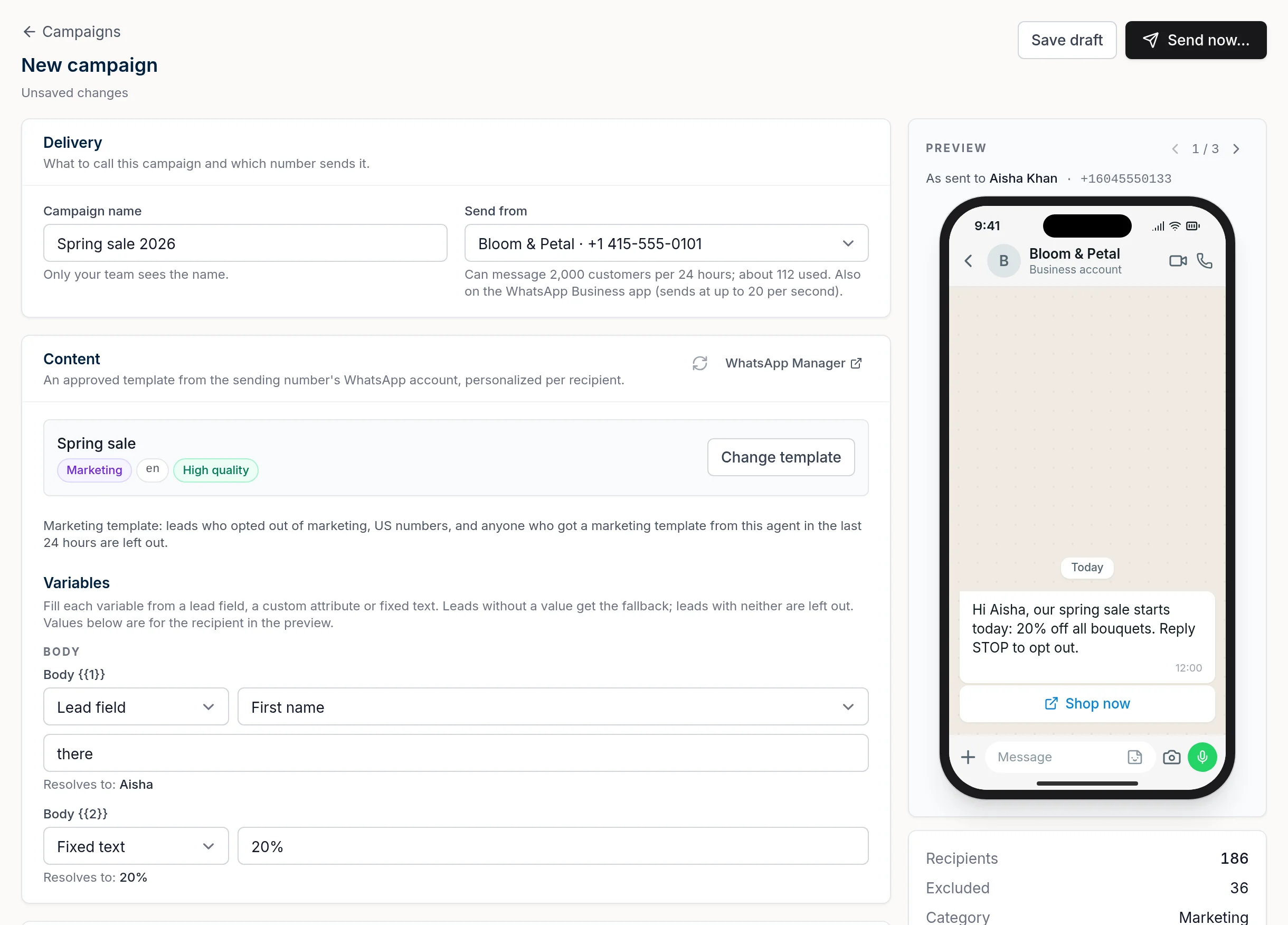
For marketing templates, Chat Data leaves out leads who opted out of marketing, US numbers, and anyone who got a marketing template from this agent in the last 24 hours. It shows your messaging limit but does not hold recipients back, so compare the recipient count with it first. Its used count covers only the selected number, so leave room for sends from other numbers in your portfolio. A coexistence number sends at up to 20 messages per second, and replies go to the AI agent or live chat, your choice. More in how to send a WhatsApp broadcast message.
Step 5: Check delivery in the Messages tab
The Messages tab lists every template sent from the agent, with its source (Templates, Campaign, Live chat or API) and status: sent, delivered, read or failed. Failed sends show the reason.
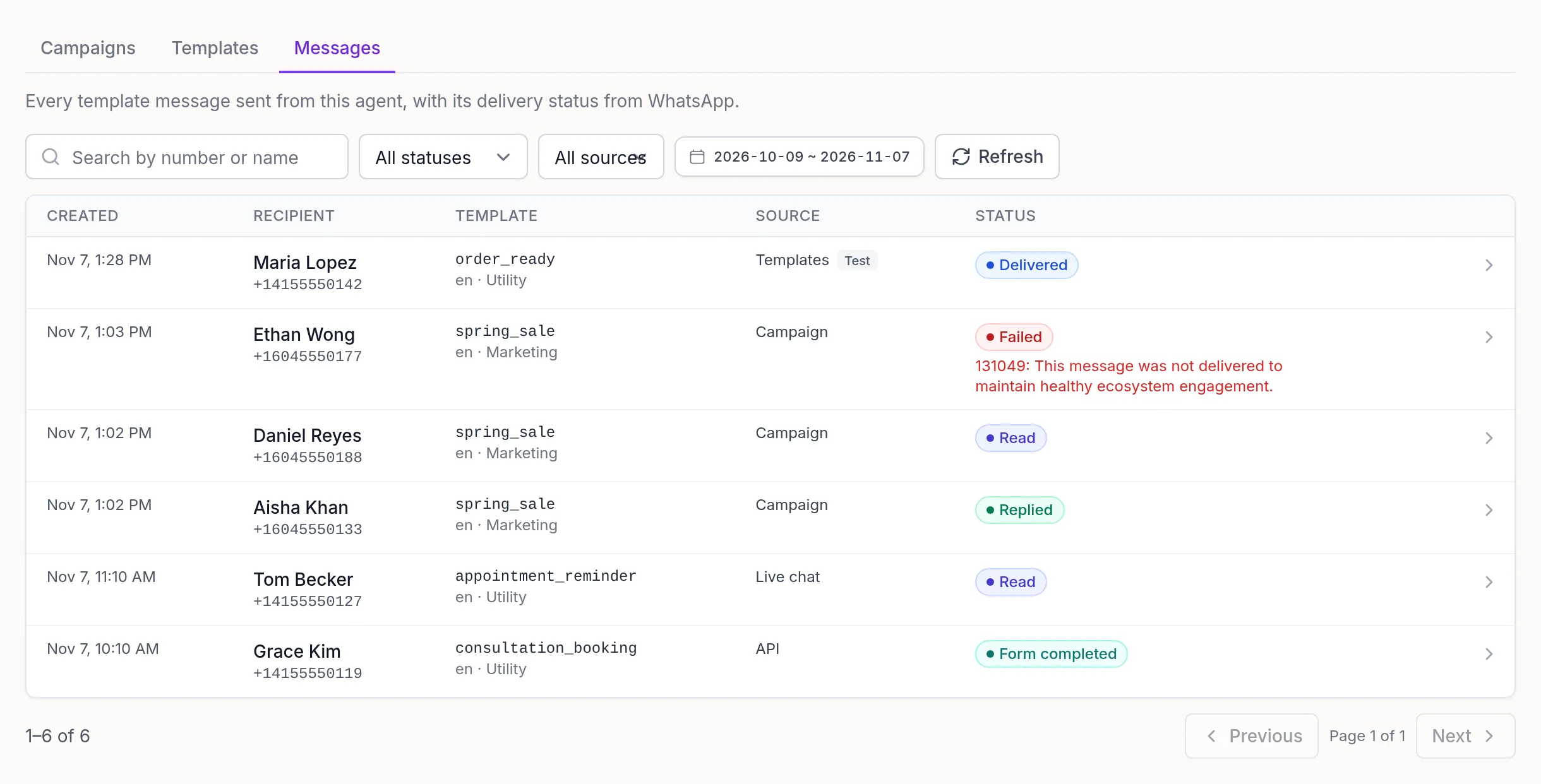
The failure codes you will see most (Meta error codes):
| Code | What it means | What to do |
|---|---|---|
| 131049 | Meta did not deliver it "to maintain healthy ecosystem engagement" (per-user marketing limit, or a US number). | Wait at least 24 hours before resending. Don't send marketing to US numbers. |
| 131050 | The customer chose to stop receiving marketing messages. | Don't resend marketing to them. |
| 131026 | Undeliverable, for example the number is not on WhatsApp or the app is out of date. | Check the number. |
To push these statuses into your own systems, use the
whatsapp-message-statusGet started
Connect your number with coexistence using the WhatsApp integration guide, submit two or three templates from the examples above, and try them with Send as a test before a campaign. To let the AI agent handle the replies, see WhatsApp Business auto reply.
Frequently Asked Questions
What is a WhatsApp message template?
A WhatsApp message template is a message format that Meta reviews and approves before you can send it. Each template has a name, a category (marketing, utility or authentication), a language, and components such as a header, body, footer and buttons. Variables like {{1}} are filled with customer details at send time.
Do I need a template to message a customer first on WhatsApp?
Yes. Free-form messages are only allowed inside the 24-hour customer service window that opens when the customer messages or calls you. To start a conversation, or to write after that window has closed, you must send an approved template. The customer must also have opted in to hear from you.
How long does WhatsApp template approval take?
Meta says an approval decision can take up to 24 hours, and many templates are approved much faster. If a template is rejected, you can edit it or file an appeal with sample values. Meta also aims to decide appeals within 24 hours.
Why was my WhatsApp template rejected?
The most common reasons are formatting problems with variables: mismatched curly braces, numbers out of order, too many variables for the length of the text, or a message that starts or ends with a variable. Missing sample values, wording that duplicates an existing template, and policy violations such as asking for sensitive identifiers also lead to rejection.
Are WhatsApp template messages free?
No. Meta charges for template messages per delivered message, based on the template category and the recipient country, and bills your WhatsApp Business account directly. You need a payment method in Meta billing settings or templates are not delivered. Chat Data plan pricing is separate and listed on the Chat Data pricing page.
Can I send marketing templates to US phone numbers?
No. Since April 1, 2025, Meta does not deliver marketing template messages to WhatsApp users with United States phone numbers, and the send fails with error 131049. Utility and authentication templates still reach US numbers. Chat Data leaves US numbers out of marketing campaigns automatically.
Can I send templates and still use the WhatsApp Business app on the same number?
Yes. With coexistence, your number stays on the WhatsApp Business app and is also connected to Chat Data. You keep chatting from your phone, the AI agent answers on the same number, and you can send templates and campaigns from Chat Data.